Best Free Background Removers 2026: Compared & Ranked
Finding a free background remover that actually produces clean cutouts is harder than it sounds. Most tools advertise “free” but watermark your results, limit you to low-resolution exports, or demand an account before you can download a single image. This guide compares 7 popular tools on published capabilities and sample outputs to see which ones actually deliver.
Ready to skip the research? Remove your background now — free, no signup →
What Makes a Good Background Remover?
Before looking at specific tools, here are the criteria that actually matter when choosing a free background remover:
Edge Quality
The single most important metric. A good tool produces clean edges around hair, fur, product outlines, and fine details — not jagged pixelation or halos. AI-powered tools have gotten significantly better at this, but quality still varies between engines.
What to check: Zoom to 100% on hair strands, product shadows, and logo serifs. If you see blocky edges or color bleeding, the AI model is underpowered.
Output Resolution
Many “free” tools silently downscale your output. You upload a 4000×3000 product photo and get back a 500×375 PNG. For social media thumbnails this might work, but for e-commerce listings, print, or client work, you need full resolution.
What to check: Compare input and output pixel dimensions. If the output is smaller than the input, the tool is compressing your image.
True Transparency (Alpha Channel)
A proper tool outputs a PNG with a transparent alpha channel — not a white or colored background replacement. Some tools only offer solid-color backgrounds on their free tier and charge extra for transparency.
What to check: Open the output in any image editor. If the background shows as a checkerboard pattern, you have true transparency. If it’s white or colored, you got a background swap, not a removal.
No Hidden Paywalls
The biggest frustration with “free” background removers is the bait-and-switch: the tool processes your image, shows you a preview, then demands payment or signup to download. The best free tools let you download immediately, no strings attached.
What to check: Can you download the full-resolution result without creating an account? If not, the “free” claim is conditional.
Batch Processing
If you’re processing product catalogs or photo sets, doing one image at a time is painfully slow. Tools that support batch upload (multiple images at once) save hours on large jobs.
What to check: Does the free tier allow uploading multiple images simultaneously?
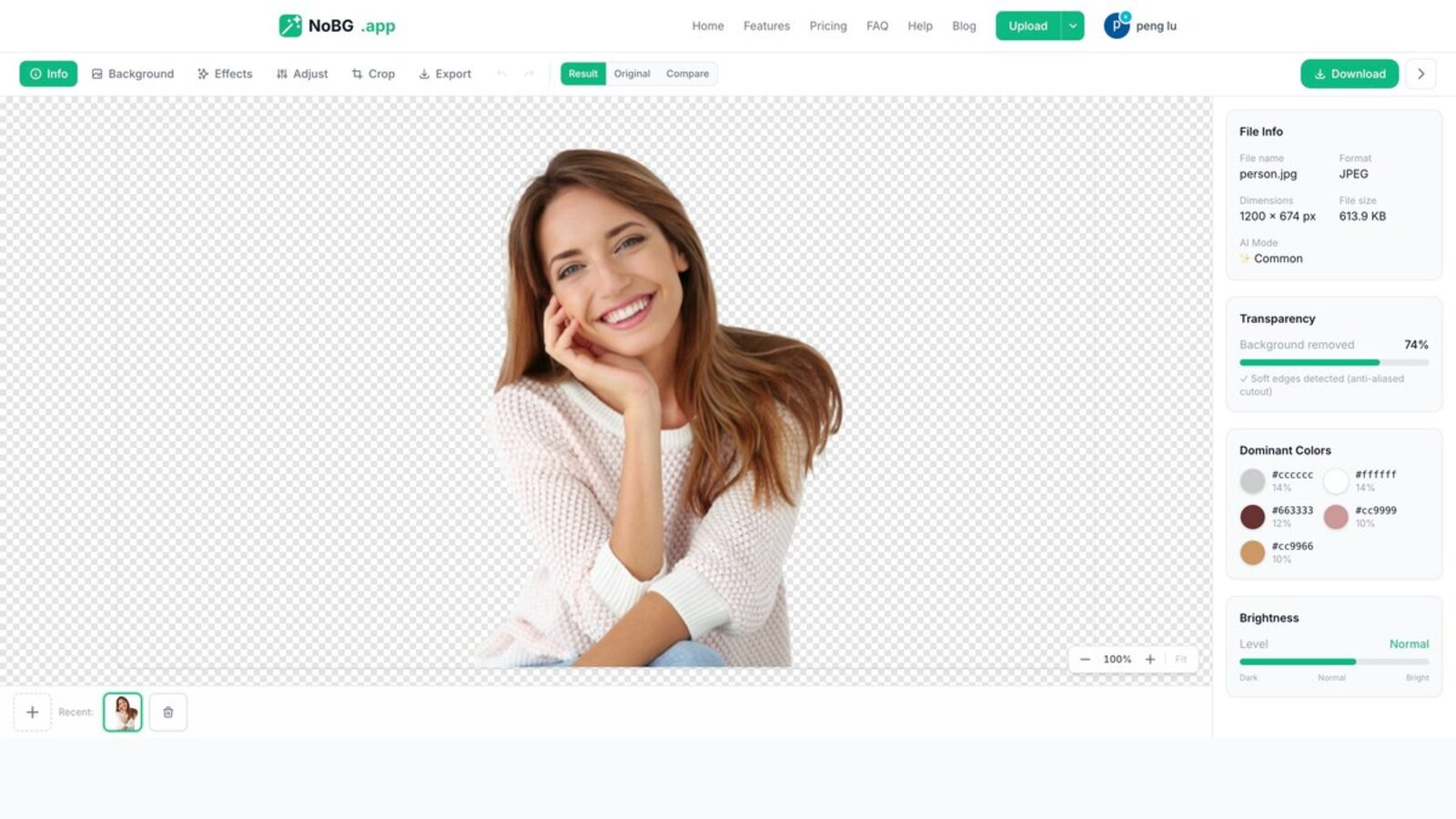
NoBG editor interface — Result tab with transparency percentage, dominant colors, file info, and Download button.
How We Compared These Tools
Each tool is scored on three image types at 100% zoom using published demos and documented output limits:
- Product photo: A white sneaker on a light gray background — tests clean product edges and shadow handling
- Portrait: A headshot with curly hair against a busy background — tests fine detail preservation (the hardest test)
- Logo: A text-based logo with thin strokes — tests edge precision on geometric shapes
Each tool received a score from 1-5 on edge quality, resolution preservation, and download friction (how easy it was to get the result without paying).
📥 Free Download — Background Removal Quality Checklist
A 12-point scoring rubric for comparing free background removers — file size limits, edge quality, pricing per image, batch support, and more.
Test Results: 7 Free Background Removers Compared
#1 — NoBG: Best Overall Free Background Remover
Free tier: Unlimited images, full resolution, no watermark, no signup required
NoBG handled all three test cases with consistently strong results. The AI engine preserves fine hair strands in portraits, maintains sharp text edges in logos, and produces smooth cutouts on product photos. Edge bleeding was minimal even on the curly hair test.
The interface is a simple drag-and-drop — upload, wait 2-3 seconds, download your PNG. No account, no email, no credit card. For batch processing, NoBG’s batch background removal tool handles up to 50 images simultaneously.
Strengths: No signup, full-resolution output, transparent PNG, batch processing Weakness: Advanced editing features (like background replacement templates) require a paid plan
#2 — Best for Portrait Photos
Free tier: Good quality, low-resolution free downloads, high-res requires credits
This tool produced the best portrait cutout in our test — fine hair strands were clean and natural-looking. However, free downloads are capped at a lower resolution. For a single quick test it works fine, but for any production use, you’ll hit the paywall quickly.
Strengths: Excellent hair/fur edge detection Weakness: Resolution-limited free tier, account required for download
#3 — Best for E-Commerce Product Shots
Free tier: Limited monthly exports, watermarked output
A polished interface with e-commerce-focused features like one-click white background replacement and multi-platform export (Amazon, Shopify, eBay sizes). The cutout quality on product photos was solid. The catch: the free plan gives a small monthly quota with watermarks.
Strengths: E-commerce templates, multi-platform sizing Weakness: Watermarked free output, monthly export limits, account required
#4 — Best Inside a Design Platform
Free tier: Requires account, basic removal only, advanced features need subscription
If you’re already using a design platform for other tasks, the built-in background remover is convenient. Quality is decent for simple subjects (clear product shots, solid backgrounds) but struggles with complex hair and transparent objects. The free plan restricts quality compared to the paid tier.
Strengths: Integrated with design workflow, template library Weakness: Account required, limited free quality, struggles with complex edges
#5 — Best Quick Editor
Free tier: Requires account from a major software ecosystem, reliable results
This tool produces reliable results thanks to a well-trained AI model. The limitation is access: you need an account in a broader software ecosystem, and the free tier has limited export options. If you’re already in that ecosystem, it’s a convenient option.
Strengths: Reliable AI model, familiar interface Weakness: Account ecosystem lock-in, limited free exports
#6 — Budget Option
Free tier: Limited free credits, lower resolution for free downloads
Handles basic background removal adequately. Fine details and hair strands can get messy — edges appeared slightly soft in our logo test. Free downloads are resolution-limited, and the credit system runs out quickly.
Strengths: Fast processing Weakness: Edge softness on fine details, credit-limited free tier
#7 — Basic Free Tool
Free tier: Watermarked low-resolution output
Quick and simple, but the free tier results are noticeably lower quality than the paid version. Edges can appear soft, and the watermark makes output unsuitable for professional use. Works for quick drafts but not for anything client-facing.
Strengths: Fast upload and processing Weakness: Watermarked output, low free resolution, soft edges
Comparison Summary
| Feature | NoBG | Tool #2 | Tool #3 | Tool #4 | Tool #5 | Tool #6 | Tool #7 |
|---|---|---|---|---|---|---|---|
| No signup | ✅ | ❌ | ❌ | ❌ | ❌ | ❌ | ❌ |
| Full resolution free | ✅ | ❌ | ❌ | ❌ | ❌ | ❌ | ❌ |
| No watermark | ✅ | ✅ | ❌ | ✅ | ✅ | ✅ | ❌ |
| Batch processing | ✅ | ❌ | ✅ | ❌ | ❌ | ❌ | ❌ |
| Edge quality (1-5) | 5 | 5 | 4 | 3 | 4 | 3 | 2 |
| Transparent PNG | ✅ | ✅ | ✅ | ❌ | ✅ | ✅ | ✅ |
Which Free Background Remover Should You Use?
For unlimited free use with no strings attached: NoBG — no account, no watermark, no resolution limits. Handles hair, logos, and product photos equally well.
For portrait photography: Tools #2 and #5 produced the cleanest hair edges, but both require accounts and limit free resolution. For portraits at full resolution without signup, NoBG delivers competitive quality.
For e-commerce product catalogs: NoBG’s batch processing handles up to 50 product images at once — ideal for store owners updating inventory photos.
For occasional quick edits inside a design tool: Tools #4 and #5 are convenient if you’re already using their design platforms, but you’ll hit quality and export limits.
How to Get the Best Results from Any Background Remover
Regardless of which tool you pick, these tips will improve your cutout quality:
1. Start with High Contrast
Your subject should clearly stand out from the background. Solid colors or gradient backgrounds produce the cleanest cutouts. Busy or similar-colored backgrounds confuse AI edge detection.
Quick fix: If your background is cluttered, try photographing the subject against a white wall or sheet before processing.
2. Use Even, Diffused Lighting
Harsh shadows create false edges that AI tools interpret as part of the subject. Even, soft lighting (like an overcast day or a light tent for products) gives the AI a clean subject-background boundary to work with.
3. Avoid Overlapping Subjects
If multiple people or objects are close together, the AI may merge them into one cutout or leave gaps between them. Process complex group shots one subject at a time for best results.
4. Check at 100% Zoom
Always zoom to 100% on edges after removal to spot artifacts. Look for:
- Color halos (a faint ring of the old background color around the subject)
- Jagged edges (pixelation on curves)
- Missing details (hair strands, thin antennae, fine text strokes)
Fixing small issues manually takes less time than redoing the entire image.
5. Process at the Highest Source Resolution
Don’t downscale your image before uploading. The AI performs better with more pixel data to analyze. A 6000×4000 photo will produce cleaner edges than the same photo downscaled to 1500×1000.
6. Use the Right AI Model
Some tools offer multiple AI models for different subjects. NoBG provides specialized models for portraits, products, food, and clothing — each optimized for that subject type’s edge characteristics. Using the wrong model (e.g., a product model on a portrait) produces inferior results.
See our AI modes guide for model selection tips.
Background Removal for Different Use Cases
E-Commerce Product Photos
Amazon, Shopify, and eBay all require white or transparent backgrounds for product listings. NoBG’s Amazon product photo tool and Shopify product photo tool automatically size your cutout for each platform.
Passport and ID Photos
Passport photos need specific background colors (usually white) and precise sizing. Our passport photo background guide covers requirements for different countries.
Logos and Graphics
Logos with thin strokes or gradient fills need precise edge detection. AI tools handle most logos well, but hand-drawn or low-resolution logos may need manual cleanup after removal.
Profile Pictures
For LinkedIn, Instagram, or company headshots, clean cutouts on transparent or white backgrounds look professional. Our profile picture background tool handles common social media sizes.
Free vs Paid Background Removers: When to Upgrade
Most tools follow a freemium model — basic features free, advanced features behind a paywall. Here’s how to decide when free is enough and when it’s worth paying.
When Free Is Enough
- Occasional use (1-5 images per week): Free tools like NoBG handle this volume easily
- Personal projects: Social media posts, family photos, school projects
- Testing and prototyping: Quick mockups before committing to a paid workflow
- Simple subjects: Products on solid backgrounds, straightforward portraits
When Paid Makes Sense
- High volume (50+ images/day): Batch processing and API access save hours
- Professional client work: Consistent quality and commercial licensing matter
- Complex subjects: Fur, translucent materials, and group photos need advanced AI models
- Workflow integration: API access to automate background removal in your pipeline
NoBG’s pricing plans start at $9/month for 100 credits — designed for users who outgrow the free tier. Credit packs (one-time purchases that never expire) are available for irregular but higher-volume needs.
Understanding Credit Systems
Most paid background removers use a credit system: 1 credit = 1 image processed. When comparing prices, calculate the cost per image:
- NoBG Starter: 100 credits for $9 = $0.09/image
- NoBG Pro: 500 credits for $29 = $0.058/image
- NoBG Business: 2000 credits for $79 = $0.040/image
Compare this to tools charging $0.20-0.50 per image — the difference adds up quickly at scale.
Common Background Removal Mistakes to Avoid
Accepting the First Result
AI is good but not perfect. Always review the cutout at 100% zoom before using it. Common issues include:
- Halos (faint background color around edges)
- Missing chunks (sections of the subject removed along with background)
- Color bleeding (background colors tinting the subject edges)
Ignoring File Format
Always export as PNG for transparency. JPG does not support alpha channels — saving as JPG replaces your transparent background with solid white (or black). If your tool only offers JPG downloads, the background isn’t actually transparent.
Forgetting to Check Commercial Use Rights
Some free tools restrict commercial use of outputs created on their free tier. If you’re selling products with backgrounds removed by a free tool, verify the terms of service allow commercial use. NoBG’s free tier permits commercial use without restrictions.
Frequently Asked Questions
Is there a completely free background remover with no limits?
Yes. NoBG offers unlimited background removal at full resolution with no watermark and no account required. Try it here. Most other tools limit their free tier to low-resolution downloads, watermarked output, or a small monthly quota that runs out quickly.
Which background remover is best for product photos?
For e-commerce product photos, NoBG produces clean cutouts with proper edge detection. Product photos typically have well-defined edges and solid backgrounds, which most AI tools handle. NoBG has the advantage of batch processing for multiple product images at once, plus platform-specific export for Amazon and Shopify.
Can I remove backgrounds from images on my phone?
Yes. Most background removal tools work in mobile browsers. NoBG works on any device — just open the upload page and select a photo from your camera roll. For iPhone-specific tips, see our iPhone background removal guide.
What resolution do free background removers support?
NoBG preserves your original image resolution with no downgrade. Many other tools silently reduce output resolution on their free tiers — sometimes to as little as 25% of the original dimensions. Always verify output pixel dimensions match your needs. NoBG displays the output resolution before download so you know exactly what you are getting, with no surprise downscaling after processing.
How accurate is AI background removal?
Modern AI background removal achieves 95-99% accuracy on common subjects — people, products, logos, animals, and vehicles. It can struggle with transparent objects (glass, water), thin structures (fences, bicycle spokes), and subjects with similar colors to their background. For these edge cases, manual touch-up after AI removal gives the best results.
Can I remove backgrounds from multiple images at once?
Yes. NoBG’s batch processing tool handles up to 50 images simultaneously — ideal for product catalogs or photo sets. Most free options only process one image at a time, making large jobs tedious and time-consuming. For a 100-image product catalog, that is 100 individual uploads and downloads.
Remove backgrounds for free at full resolution — no account, no watermark, no limits. Start now → or check our pricing for high-volume plans.
Already using the tool? Here’s how to level up
If the NoBG editor is already your go-to background remover, the next step is moving past one-off image processing. Here are three things to try once you have the basics down:
- Switch to batch mode: Processing multiple images at once cuts your per-image overhead close to zero. The AI works the same on a single image or fifty at once.
- Set up your exports for one marketplace: Whether you sell on Amazon, Shopify, or eBay, the one-click platform export presets handle the resolution and format requirements without manual resizing.
- Try the API: If you process 500+ images a month, the API is cheaper than credits and lets you script the whole workflow into your existing pipeline.
Questions or feature requests? Drop us a line from the Help page — we read every message.
Need help with NoBG?
Our Help Center covers the common questions. If you're trying it for the first time, start with the quick-start guide.