How to Change Image Background Online (Free & Easy)
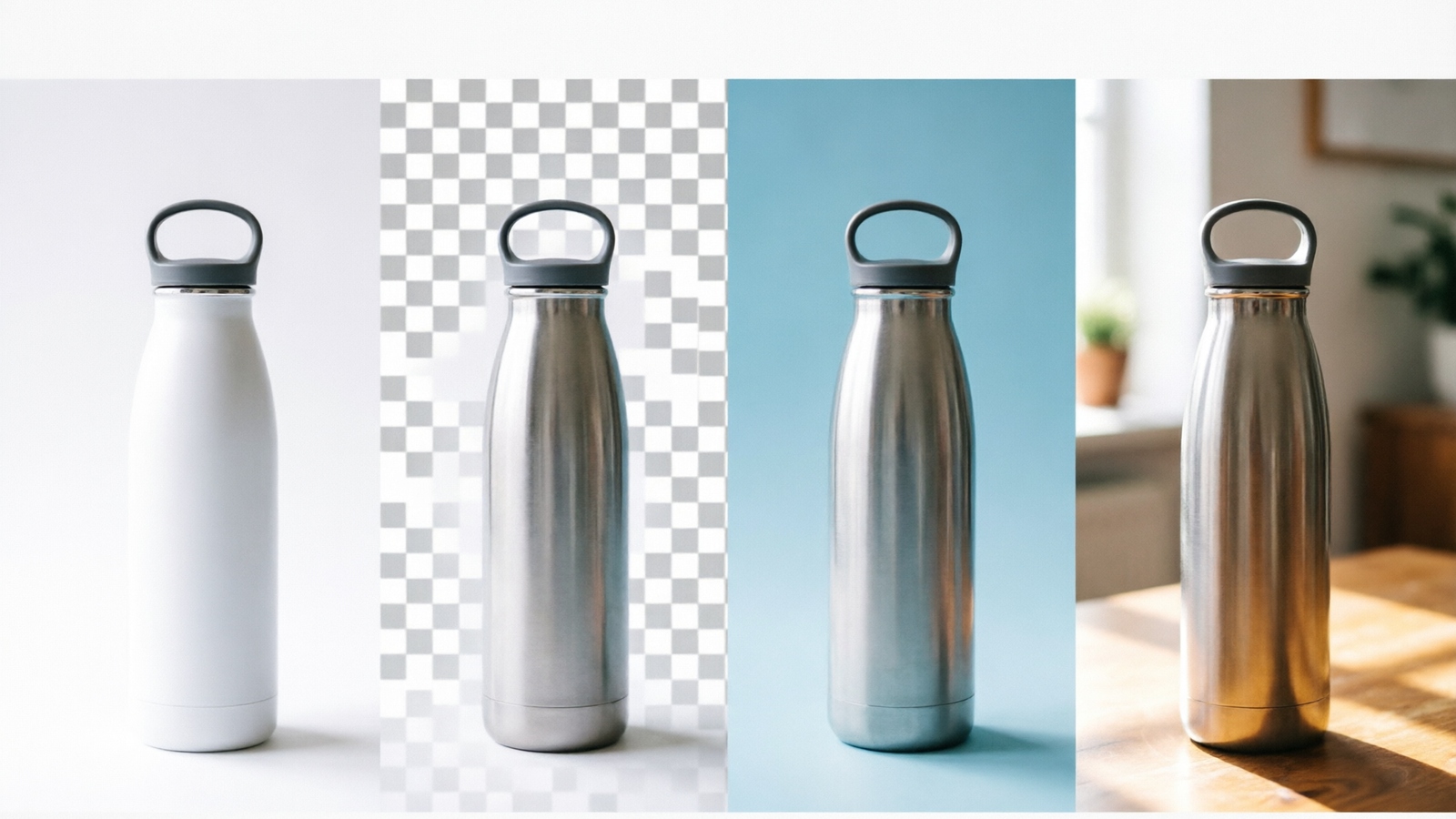
AI background removal is a process where machine learning models automatically detect and separate the main subject of a photo from its background, creating a precise cutout without manual editing. These models are trained on millions of images and can handle complex edges like hair, fur, and transparent objects. Whether you want a clean white background for your product photos, a transparent background for your logo, or a custom backdrop for social media, learning how to change image background online is now faster than ever — no Photoshop skills required.
This guide covers changing backgrounds for any use case: product photos, headshots, social media content, and marketing materials. We’ll walk you through choosing the right background type, preparing your image for the best results, and getting professional output in seconds.
How to Change Image Background Online in 3 Steps
The process to change image background online is the same regardless of which tool you use or what type of background you need. Here’s how it works:
Step 1: Upload your image Go to NoBG’s background editor and drag your image onto the page. Most tools that change image background online support JPG, PNG, and WebP formats. For the best results, start with the highest-resolution version available. If you need to prep your photo first, check our guide on how to remove the background first.
Step 2: Remove the existing background The AI automatically detects your subject and separates it from the background. This usually takes 2–3 seconds. The AI works best when your subject has clear edges and good contrast with the original background — see the tips section below for how to optimize your image before uploading.
Step 3: Choose and apply your new background Once the original background is removed, select your replacement. Most tools let you choose a solid color, upload a custom image, or keep it transparent. Some tools also offer AI-generated backgrounds from a text prompt, which is useful for creating lifestyle scenes without sourcing your own stock photos.
Try changing your background now — free, no signup →
Choose the Right Background Type
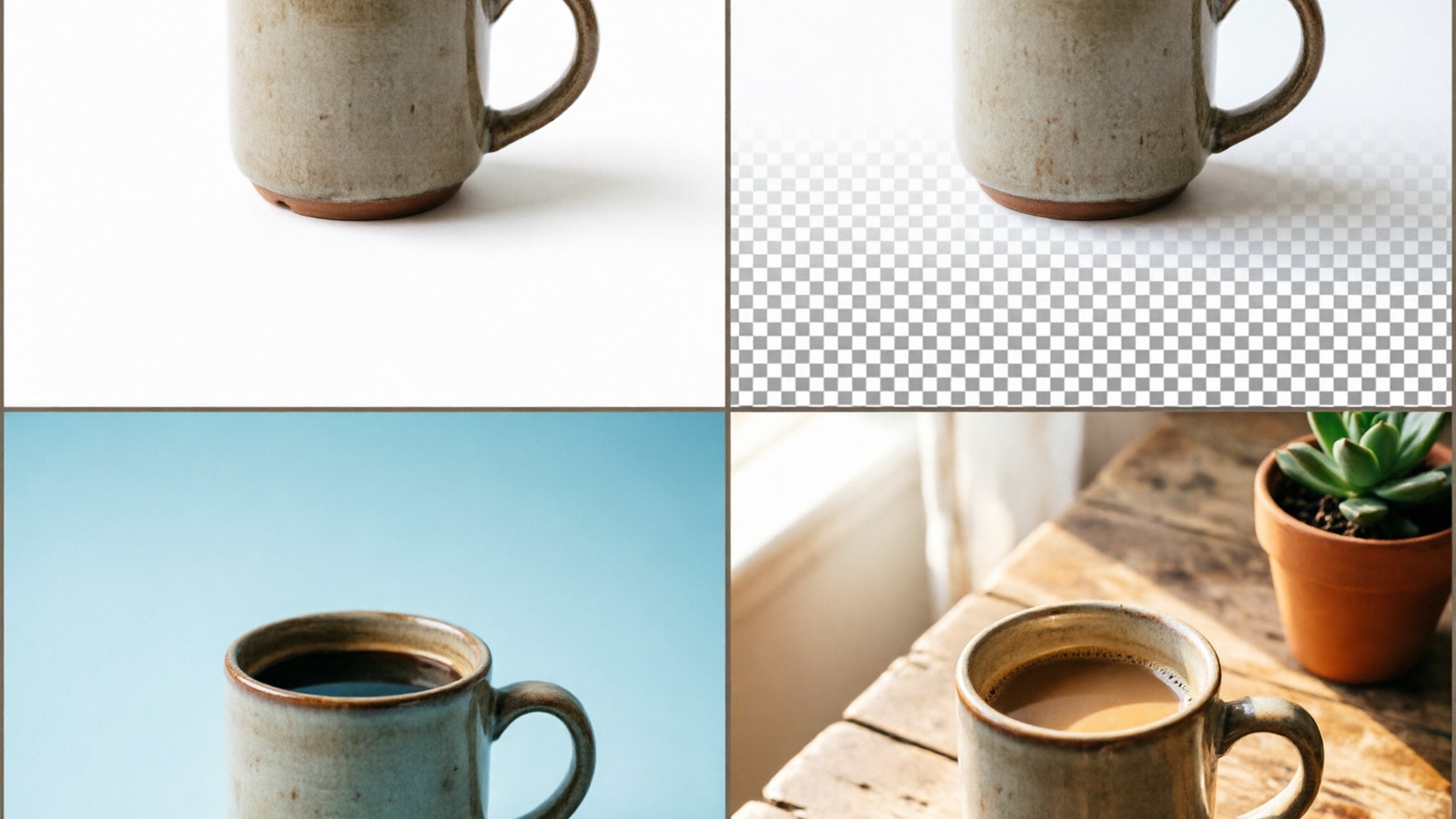
Not sure which background type to choose? Here’s a quick reference for different scenarios:
| Background Type | Best For | Format |
|---|---|---|
| White | Amazon, Shopify, eBay product listings | JPG/JPEG |
| Transparent | Logos, overlays, stickers, design assets | PNG |
| Custom Color | Branding, social media templates | PNG or JPG |
| Photo/Image | Marketing graphics, creative content | JPG/JPEG |
White backgrounds are the most common choice for e-commerce. Amazon requires pure white (RGB 255, 255, 255) product images at a minimum of 2000×2000 pixels. Most online marketplaces follow similar guidelines. If you’re selling products across multiple platforms, a white background ensures your listings look consistent and professional everywhere. For sellers who regularly swap backgrounds, white is the default starting point.
Transparent backgrounds are essential for anything that needs to layer over other content — logos on websites, product cutouts for catalogs, or sticker-style social media posts. Always save transparent results as PNG since JPEG doesn’t support transparency. A transparent PNG can be placed on any background in design tools like Canva, Figma, or Photoshop, making it the most versatile format for digital assets.
Custom color backgrounds work well for branded content. Match the background to your brand colors for social media posts, email headers, or presentation slides. If your company uses a specific shade of blue or green, using it consistently across all visuals builds instant brand recognition. A fitness brand might use bold red for product shots, while a wellness brand might prefer soft sage green.
Photo backgrounds are ideal for creative and marketing use. Place your product into a lifestyle scene, add your headshot to a professional office setting, or create eye-catching social media graphics. Lifestyle backgrounds tend to generate more engagement on Instagram and Pinterest compared to plain studio shots. When selecting a photo background, choose images that complement your subject — a coffee product on a wooden table with warm lighting, or a tech gadget on a minimalist desk setup.
5 Tips for Getting the Best Results
The quality of your final result when you change image background online depends mostly on your original image. Follow these tips before uploading:
✅ Do
- Use high-resolution originals — anything under 500px produces jagged edges; aim for 1000px or wider. Modern smartphones shoot 3000px+ — always use the original file, not a compressed WhatsApp or social media download
- Create contrast between subject and background — a dark product on a light surface gives the AI a clear boundary. If your subject blends into the background, place a plain-colored sheet or poster board behind it
- Use simple, solid-color backgrounds — plain walls, sheets, or poster board work best. Busy patterns and cluttered scenes significantly increase error rates
- Light your subject evenly — harsh shadows create undefined edges. Diffused lighting near a window works well; for larger items, two light sources from opposite angles prevent shadow buildup
- Photograph fine details on contrasting colors — dark hair on white or light blue gives significantly cleaner cutouts. For pet photos, a smooth texture-free background works best
❌ Don’t
- Don’t use compressed photos — Messenger, WhatsApp, and Instagram downloads strip resolution and detail
- Don’t shoot on patterned or cluttered surfaces — checks, stripes, and busy backgrounds confuse the AI
- Don’t mix dark subjects with dark backgrounds — a black shirt on dark grey produces ragged, undefined edges
- Don’t rely on a single overhead light — it creates harsh shadows underneath the subject that get cut incorrectly
- Don’t use the AI on blurry or out-of-focus photos — the model cannot distinguish soft edges from the actual subject boundary
Common Use Cases
E-commerce product photos
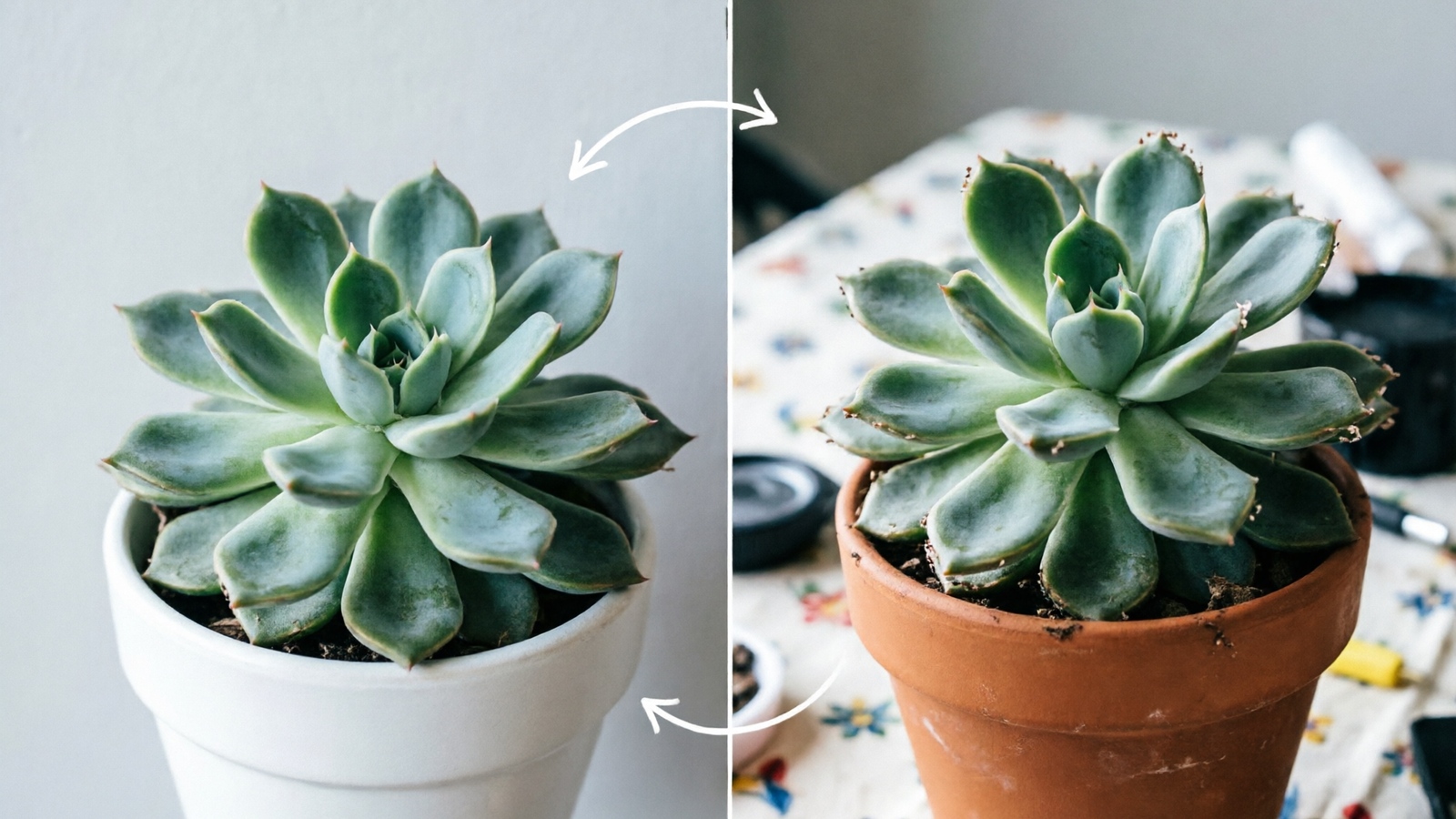
Selling on Amazon, Shopify, or eBay? Product photos on clean backgrounds consistently outperform cluttered ones in sales. Many sellers photograph products on any convenient surface — a desk, a carpet, a cutting board — then change image background online to white. The workflow is straightforward: photograph on any surface, upload to a background changer, apply a white background, and export in the marketplace’s required format. Amazon specifically requires pure white backgrounds at 2000×2000 pixels minimum in RGB color mode, saved as JPEG. If you need to change photo background to white online for a batch of product images, most tools offer batch processing to handle them all at once.
Professional headshots
Need a clean background for LinkedIn, a company directory, or an acting portfolio? AI tools can replace photo background online free and swap distracting backgrounds with neutral tones. Even lighting and solid-color clothing produce the cleanest headshot results. Gray or light blue backgrounds are popular choices for professional profiles — they look clean without being as stark as pure white. The entire process takes under 10 seconds once your image is uploaded. For group company photos taken in an office or event setting, changing each person’s background individually ensures consistency even if they were photographed in different locations.
Social media content
Content creators frequently change backgrounds for profile pictures, story overlays, and branded posts. A transparent product cutout layered onto a lifestyle scene looks more professional than a flat product photo. Instagram and TikTok creators often use background changes to create consistent visual themes across their feeds, matching product photos to seasonal themes or brand colors. When you change image background online for social media, consider the overall feed aesthetic — consistent backgrounds build a cohesive brand look. For YouTube thumbnails, removing the background and adding a bold solid color behind the subject can increase click-through rates by making the thumbnail stand out in a crowded feed.
Marketing materials
Background changes are useful for creating consistent branded visuals across different platforms. Place products into mockup scenes, create promotional banners, or generate thumbnails with matching backgrounds. Marketing teams often maintain a library of background templates that they apply to product photos for email campaigns, landing pages, and paid ads. Consistency across all marketing channels reinforces brand identity. Email marketers commonly change product photo backgrounds to match seasonal campaigns — warm tones for autumn promotions, bright colors for summer sales — without re-shooting the original product photos.

Tools for Changing Image Backgrounds
Several online tools can handle background changes effectively. If you need to change background of image without Photoshop, these web-based tools are the best alternatives. Here’s what to evaluate:
- Edge accuracy — how well the tool handles hair, fur, and thin objects like jewelry and plant stems
- Processing speed — matters if you process multiple images per day or need quick turnaround
- Batch processing — essential for e-commerce sellers with 20+ product photos in a catalog
- Export options — some tools offer direct export sized and formatted for Amazon, Shopify, and other platforms
For a detailed comparison of available options, see our guide to the best free background removers. The best background changer online combines edge accuracy with fast processing and flexible export options. Most tools that change image background online support adding replacement backgrounds, not just removing them.
Key options include NoBG (free tier, no signup required, batch mode available), remove.bg (popular tool with good accuracy, limited free tier of 1–2 images per day), Adobe Express (tightly integrated with Adobe’s design ecosystem, good for existing Adobe users who want to combine background changes with other edits), Canva (best option if you’re already using Canva for design work — background removal is built into the editor), and Picsart (strong mobile app for editing on the go, with a good free tier for casual use).
Try NoBG free — change your background in seconds →
Free vs Paid: Which Do You Need?
Free tools work well for occasional use — a few images per week for personal projects, social media posts, or one-off product photos. Most free plans cap you at 3–5 images per day with standard processing speed, which is plenty for casual users. Students, hobbyists, and small business owners with limited product lines typically find free tiers sufficient. If you just need a free app to change background of photo occasionally, the free tier of most tools gets the job done.
Consider upgrading to a paid plan if you’re regularly processing images in bulk. The main benefits are higher daily limits, faster processing speed, batch upload capabilities, and platform-specific export options that handle sizing and formatting automatically.
NoBG’s Pro plan is designed for users processing 20+ images per month. Batch processing alone can save hours compared to uploading and downloading images one by one. For e-commerce sellers with large product catalogs, the time savings typically justify the cost within the first month of use. API access is another reason to consider paid plans — developers can integrate background changes directly into their own applications, automating workflows for inventory management systems, photo printing services, or content management platforms.
Frequently Asked Questions
Can I change my background without Photoshop?
Yes. Online AI tools handle background changes entirely in your browser with no software installation or design experience needed.
How do I change a photo background to white for free?
Upload your image to a background changer, let the AI remove the original background, select white as your replacement, and download the result as JPEG.
What’s the best resolution for background changes?
Aim for 1000px or wider. Images under 500px produce pixelated edges around your subject that look unprofessional at full size.
Can I change the background of a photo on my phone?
Yes. Most background changers work in mobile browsers — upload from your camera roll, apply your new background, and download the result directly to your device.
Need help with NoBG?
Our Help Center covers the common questions. If you're trying it for the first time, start with the quick-start guide.