How to Get a Transparent Background Online (Free, No Signup)
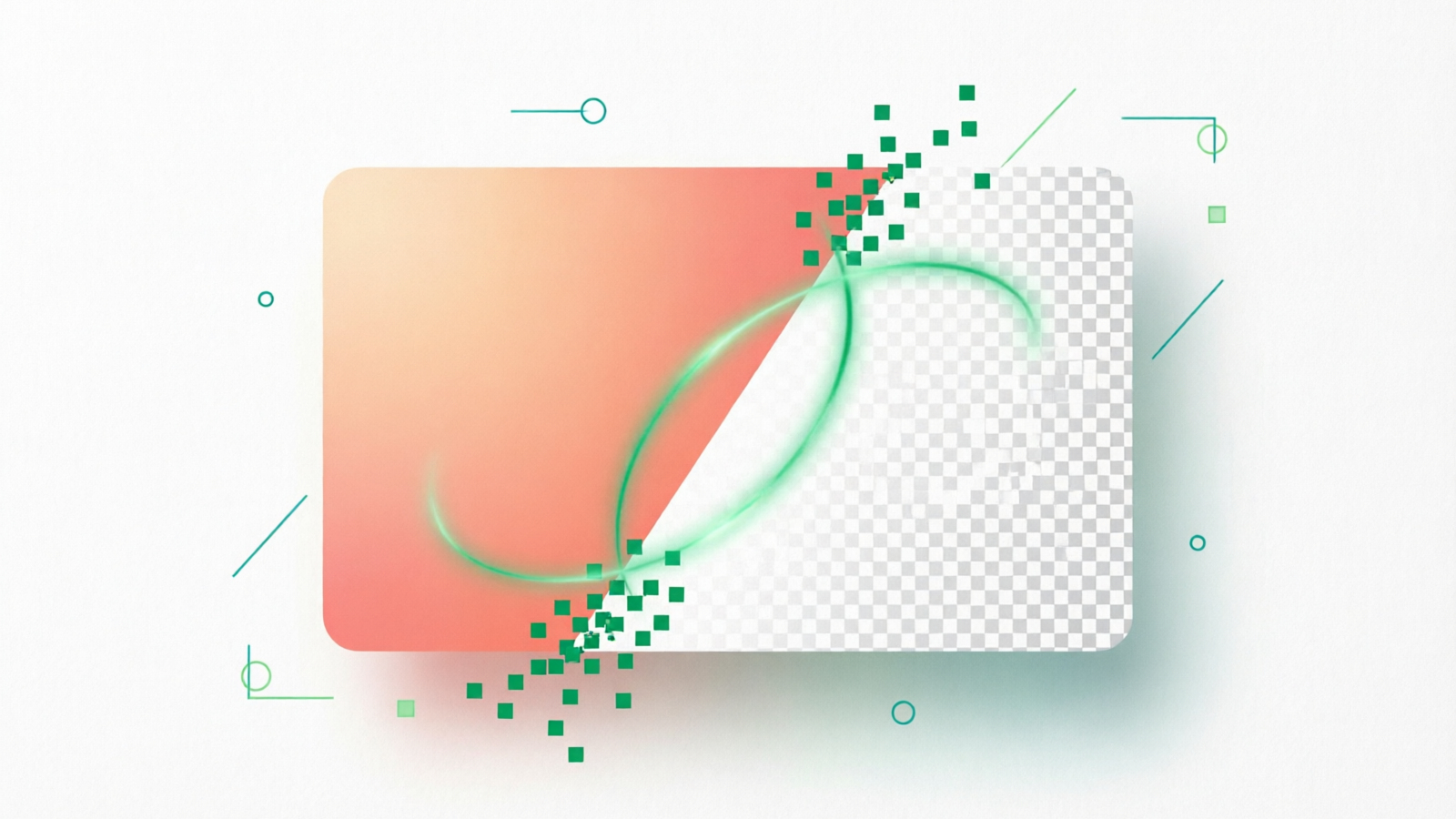
Need a transparent background right now? You don’t need Photoshop, a downloaded app, or a paid subscription. Free online tools can remove any background in seconds — and the results are often better than manual editing.
This guide shows you exactly how to do it using nothing but your browser. Whether you’re editing a product photo for your online store, cleaning up a logo, or prepping a profile picture, the process takes about 10 seconds total.
Remove your background right now — it’s free →
Why Go Online Instead of Using Software?
Desktop software has its place, but most people don’t need it for background removal. Here’s why online tools win for this specific task:
Speed. Upload, process, download. Three seconds. Compare that to opening Photoshop, loading your image, selecting the background, refining edges, and exporting — that’s several minutes even for experienced users.
Zero cost. Free online background removers produce the same quality as expensive software for 90% of use cases. The AI handles the heavy lifting.
No installation. Works on any device with a browser — your laptop, tablet, or even your phone. Chrome, Firefox, Safari, Edge — all supported.
Automatic edge detection. Modern AI handles hair, fur, transparent objects, and complex shapes better than most manual selections. The technology has improved dramatically in the past two years.
When software still matters: If you’re doing professional compositing, working with RAW files, or need pixel-level control over color channels, stick with dedicated software. For everything else, online tools are faster and free.
How to Get a Transparent Background in 3 Steps
Here’s the fastest method. It works for product photos, portraits, logos, graphics, and any image with a distinguishable subject.
Step 1: Upload Your Image
Go to NoBG and drag your image onto the upload area. You can also click to browse your files. Supported formats include JPG, PNG, and HEIC.
No account is required. No email. No signup form. Just upload and go.
Best results come from: High-resolution images (at least 800px wide), clear contrast between subject and background, good lighting on the subject. Dark subjects on light backgrounds or light subjects on dark backgrounds process fastest.
Step 2: AI Removes the Background Automatically
The AI engine analyzes your image the moment you upload it. It identifies the foreground subject using deep learning models trained on millions of images, then separates the subject from the background.
This happens automatically — no sliders, no settings, no “select and mask” workflow. The entire processing takes about 1-2 seconds.
What the AI handles well: People (including hair details), products with clean edges, logos on solid backgrounds, animals, vehicles, and furniture. Complex backgrounds with similar colors to the subject may need a quick touch-up in the editor.
Step 3: Download Your Transparent PNG
Click the download button. Your image is saved as a transparent PNG — the background is fully transparent, ready to overlay on any color, pattern, or design.
You can also use the built-in editor to adjust the result: change background color, add a shadow, or fine-tune the edges before downloading.
Try it now — upload any image and get your transparent background →
What File Format Should You Use?
Transparent backgrounds only work with certain file formats. Here’s what you need to know:
PNG — Use this. PNG supports full transparency with alpha channels. This is the standard format for transparent images. Use it for logos, product photos, overlays, and any image that needs a see-through background.
JPG — Does NOT support transparency. If you save a transparent image as JPG, the transparent areas turn white (or whatever your background color was). Always use PNG when you need transparency.
SVG — For logos and graphics only. SVG supports transparency and scales to any size without quality loss. But it only works for vector graphics, not photographs.
Quick rule: If you need a see-through result, download as PNG. If someone asks for a JPG, they don’t actually need transparency — they need a white or colored solid background instead.
5 Common Use Cases for Transparent Backgrounds
Product Photos for E-Commerce
Amazon, Shopify, eBay, and Etsy all require or strongly prefer product images with clean, white or see-through backgrounds. This lets you place your product on any colored backdrop your store design requires.
Upload your product photo, get the transparent PNG, then overlay it on your brand’s background color or pattern in your design tool.
Logo Design and Branding
Logos almost always need transparent backgrounds. You’ll use your logo on websites (over colored headers), business cards, social media posts, merchandise, and presentations. A solid background on your logo file breaks every single one of these uses.
Social Media Graphics
Transparent cutouts work great for Instagram stories, TikTok overlays, Pinterest pins, and Twitter headers. Remove the background from a person or product, then place it over any custom design.
Profile Pictures
A transparent-background profile picture looks clean on any platform. Remove the cluttered background from your selfie and use the clean cutout instead.
Presentations and Documents
Place transparent product images or team photos into PowerPoint, Google Slides, Word documents, or PDF reports without ugly background squares around your subjects.
Getting the Best Results: Tips and Troubleshooting
Improve Your Source Image
The quality of your result depends on your original image. Follow these guidelines:
- Use high-resolution images. At least 800px on the shortest side. Low-resolution photos produce jagged, pixelated edges.
- Maximize contrast. A dark subject on a light background (or vice versa) is easiest for AI to separate.
- Use even lighting. Harsh shadows create gradient edges that confuse background detection.
- Avoid cluttered backgrounds. A solid or simple background processes more accurately than a busy scene behind your subject.
Fix Common Issues
Rough or jagged edges? Your source image is likely low-resolution or has poor contrast. Try uploading a higher-quality version. If that’s not possible, use the editor’s edge refinement tool to smooth the outline.
Background not fully removed? This happens when the subject and background share similar colors — like a white product on a slightly off-white background. Increase the contrast of the source image first, then re-upload.
Part of the subject was removed? This occurs with complex subjects like lace, sheer fabrics, or objects with transparent parts (glass, ice, water). Use the restore brush in the editor to paint back the missing areas.
Hair looks unnatural? Hair is the hardest edge case for any background remover. The AI does a good job with most hair types, but very curly, frizzy, or heavily backlit hair may need manual touch-up. The editor’s edge tool helps here.
Transparent Background FAQ
Can I do this on my phone?
Yes. Open your mobile browser, go to NoBG, and upload a photo from your camera roll. The process is the same — upload, AI processes, download transparent PNG. It works on both iPhone and Android without installing any app.
Is there a file size limit for PNGs with transparency?
Transparent PNGs are larger than JPGs because they store alpha channel data. A typical 1000×1000px result is 200-500KB. For high-resolution product photos (4000×4000px), expect 1-3MB. This is normal and won’t cause issues for e-commerce platforms or social media uploads.
Is background removal free?
Yes. NoBG’s free tier lets you remove backgrounds from standard-resolution images at no cost. For high-resolution output or batch processing of multiple images, check the pricing page for affordable plans.
What’s the difference between transparent and white background?
A transparent background has no color at all — the image is see-through where the background was. A white background is solid white. Use transparent when you need to overlay the image on other designs. Use white when the platform requires a specific background color (like Amazon’s product photo requirements).
How do I add a new background after making it transparent?
After downloading your transparent PNG, you can add any background using any image editor — online tools, design software, or even PowerPoint. Place the transparent image on top of any color, photo, or pattern. Since the background is transparent, only your subject is visible on top of the new background.
Can I remove backgrounds from multiple images at once?
Yes. NoBG supports batch processing for multiple images. Upload several files at once and remove backgrounds from all of them in a single session. This is especially useful for e-commerce stores that need to process dozens of product photos. Visit the batch processing page for more details.
Conclusion
Getting a see-through result online is fast, free, and requires no software or signup. Upload your image, wait 3 seconds for AI processing, and download a clean PNG. The quality rivals professional editing software for 90% of everyday use cases — product photos, logos, profile pictures, and social media graphics.
If you need this done regularly, bookmark NoBG and process images as you need them. For bulk product photos or high-resolution output, explore the pricing options to find a plan that fits your volume.
Get your transparent background now — free, no signup required →