How to Make White Background for Amazon Product Photos
How to Make White Background for Amazon Product Photos
Amazon’s main image rule is one of the strictest in e-commerce: your product must appear on a pure white background (RGB 255, 255, 255). Get it wrong, and Amazon will suppress or reject your listing. Get it right, and your product looks professional in search results alongside millions of competitors.
This guide covers Amazon’s exact image requirements, how to photograph products that are easy to edit, and how to create compliant white background images in seconds using AI tools.
Amazon’s White Background Requirements (2026)
These rules come directly from Amazon’s Product Image Guide. Non-compliance can result in listing suppression, so getting these right matters.
Main image specifications
| Requirement | Specification |
|---|---|
| Background | Pure white — RGB values must be exactly 255, 255, 255 |
| Minimum size | 1,000 pixels on the longest side |
| Recommended size | 2,000 × 2,000 pixels (enables zoom) |
| Format | JPEG, PNG, TIFF, or GIF |
| Color mode | RGB (not CMYK) |
| Product fill | Product must fill at least 85% of the image frame |
What is not allowed in main images
- Colored, textured, or off-white backgrounds (even slightly grey will be flagged)
- Text, logos, watermarks, or graphics overlaid on the image
- Borders, frames, or inset images
- Shadows that extend to the edge of the frame
- Multiple products in one image (unless they’re sold as a set)
- Illustrations or mockups — only real product photos
Secondary images (2nd–7th images)
Secondary images have more flexibility. You can use lifestyle photos, infographics, text overlays showing features, size comparison charts, and different angles. These do not require a white background.
The bottom line: Only your first (main) image needs the white background. Use the remaining six slots for marketing content that converts browsers into buyers.
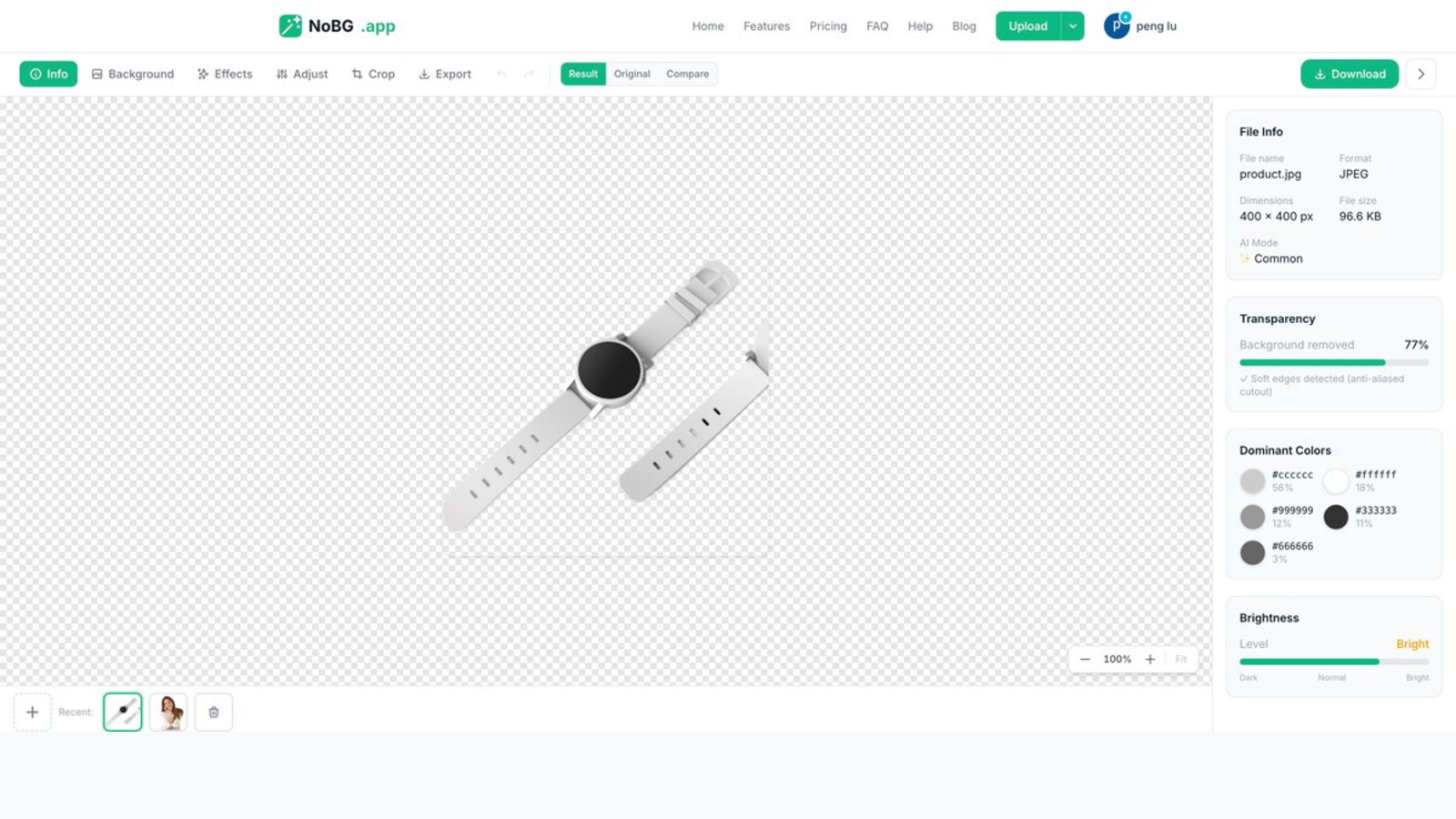
NoBG editor interface — Result tab with transparency percentage, dominant colors, file info, and Download button.
Method 1: Photograph on a White Background
The traditional approach is to photograph your product on a white surface. This works, but requires careful setup.
What you need
- A white backdrop (seamless paper, foam board, or a light tent)
- Even lighting (two light sources at 45° angles work best)
- A camera or smartphone with at least 12MP
- A tripod to keep the camera steady
How to get a true white background
The most common mistake is photographing on a white surface but ending up with a grey or off-white background in the final image. This happens because cameras automatically expose for the mid-tones, which pulls white surfaces down to grey.
Two ways to fix this:
-
Overexpose by +1 to +1.5 stops. This pushes the white background to true white. The product may look slightly washed out, but you can recover detail in post-processing.
-
Use manual exposure. Set your camera to manual mode, point it at the white background, and adjust until the background reads as pure white in the histogram. Then reposition the product and shoot.
Pros and cons
Pros: No post-processing needed if you get the lighting right. The product looks natural with correct shadows.
Cons: Time-consuming to set up. Hard to get true RGB 255,255,255 consistently. Doesn’t work well for products with white or light-colored elements (the product blends into the background). Requires physical space for a photo setup.
Method 2: Photograph on Any Background, Then Use AI
This is the approach most Amazon sellers use today. Photograph your product anywhere — your desk, a table, a colored sheet — then use AI to remove the background and replace it with pure white.
Why this works better for most sellers
- No studio setup needed. You can photograph products wherever you have good lighting.
- True white every time. AI-generated white backgrounds are exactly RGB 255,255,255 — no guesswork.
- Works for white products. Light-colored products that would blend into a white photo backdrop are cleanly separated by AI.
- Batch processing. Process 10–50 product images in minutes instead of hours of manual editing.
How to do it
Try NoBG Free — remove backgrounds and add white in one click →
Step 1: Photograph your product on any contrasting background. A grey, blue, or beige surface works well. The key is contrast between the product and the background — the AI needs a clear boundary to detect the product edges.
Step 2: Upload to an AI background removal tool. Tools like NoBG detect the product automatically. No manual selection or tracing needed.
Step 3: Apply a white background. Most tools offer a solid white background option. Select it, and the AI fills the background with pure white (RGB 255,255,255).
Step 4: Export in Amazon’s required format. Export as JPEG at 2000×2000 pixels, RGB color mode. Some tools offer a one-click Amazon export that handles the sizing automatically.
Processing takes 2–3 seconds per image. For a catalog of 50 products, the entire batch can be done in under 5 minutes with NoBG’s batch processing.
📥 Free Download — Amazon Product Photo Specification Sheet
Exact pixel, color, format, and aspect-ratio rules per Amazon category — copy/paste ready specs and a 7-step pipeline.
Tips for Getting the Best AI Results
The quality of your final image depends on the quality of your source photo. Follow these tips for clean results:
Lighting
- Use even, diffused lighting. A desk lamp pointed at the ceiling creates soft, even light.
- Avoid direct flash — it creates hot spots and harsh shadows that confuse the AI.
- Natural light from a window works well but be consistent (cloud cover changes light color throughout the day).
Background contrast
- Dark products on light backgrounds — ideal. Maximum contrast, cleanest edges.
- Light products on dark backgrounds — also ideal. A dark towel or mat works great.
- White products on any background — the AI handles this better than photography on white, but use a contrasting color (grey, light blue) so the AI can find the edges.
- Transparent or translucent products (glass, clear plastic) — inherently difficult. Consider a colored background that shows through the product.
Product presentation
- Place the product centered in the frame with space around all edges.
- Position props, labels, or packaging outside the frame — the AI will try to include everything in the foreground.
- For clothing, steam or iron it first. Wrinkles create shadows that look like edges to the AI.
Common Amazon Image Mistakes
Off-white backgrounds
Even RGB values of 250, 250, 250 (a barely visible grey) can trigger Amazon’s non-white background flag. Always verify your final image has a background of exactly 255, 255, 255. You can check this in any image editor by sampling the background color.
Product too small in the frame
Amazon requires the product to fill at least 85% of the image area. If your product occupies less than half the frame, crop the image closer before uploading.
JPEG compression artifacts
When saving as JPEG, use high quality (90% or above). Heavy compression creates visible artifacts around product edges that look unprofessional. PNG preserves edge quality better but produces larger files — use JPEG at high quality as a good compromise.
Inconsistent image sizes across a listing
Using different image sizes for your main and secondary images creates a jarring experience when shoppers swipe through photos. Keep all images at the same resolution, ideally 2000×2000 pixels.
Frequently Asked Questions
Does Amazon require a white background on all images?
No. Only the main image (first image) requires a pure white background. Secondary images (images 2–7) can use lifestyle settings, colored backgrounds, infographics, and text overlays. In fact, varied secondary images improve conversion rates by showing the product in use.
What RGB value is pure white for Amazon?
Pure white is exactly RGB 255, 255, 255. Any value below 255 on any channel produces a grey or tinted background. Off-white, cream, or grey backgrounds will be flagged by Amazon’s automated system.
Can I use Photoshop to make a white background?
Yes, you can use image editing software with a background removal tool. However, AI-based online tools produce results in 2–3 seconds compared to several minutes of manual work. For large product catalogs, online tools are significantly faster.
How many pixels does Amazon require for product images?
The minimum is 1,000 pixels on the longest side. However, Amazon strongly recommends 2,000 × 2,000 pixels because this enables the zoom feature on the product detail page. Zoom has been shown to increase conversion rates by making shoppers feel more confident about product details.
What if my product is white — how do I photograph it on a white background?
This is the classic challenge. Don’t photograph white products on a white background — the AI can’t distinguish between product and backdrop. Instead, photograph on a contrasting color (grey, blue, or black), then use AI to remove the background and replace it with pure white. The AI handles edge detection much better when there’s contrast.
Create Amazon-ready white background photos in seconds — try NoBG free →
Related guides
- Remove background from headshots — professional portraits on white
- Passport photo background color — meet official ID photo specs
- Change background color of any image — customize backdrops for any use
Already using the tool? Here’s how to level up
If the NoBG editor is already your go-to background remover, the next step is moving past one-off image processing. Here are three things to try once you have the basics down:
- Switch to batch mode: Processing multiple images at once cuts your per-image overhead close to zero. The AI works the same on a single image or fifty at once.
- Set up your exports for one marketplace: Whether you sell on Amazon, Shopify, or eBay, the one-click platform export presets handle the resolution and format requirements without manual resizing.
- Try the API: If you process 500+ images a month, the API is cheaper than credits and lets you script the whole workflow into your existing pipeline.
Questions or feature requests? Drop us a line from the Help page — we read every message.