How to Remove Background from Image Online (Free, No Signup)
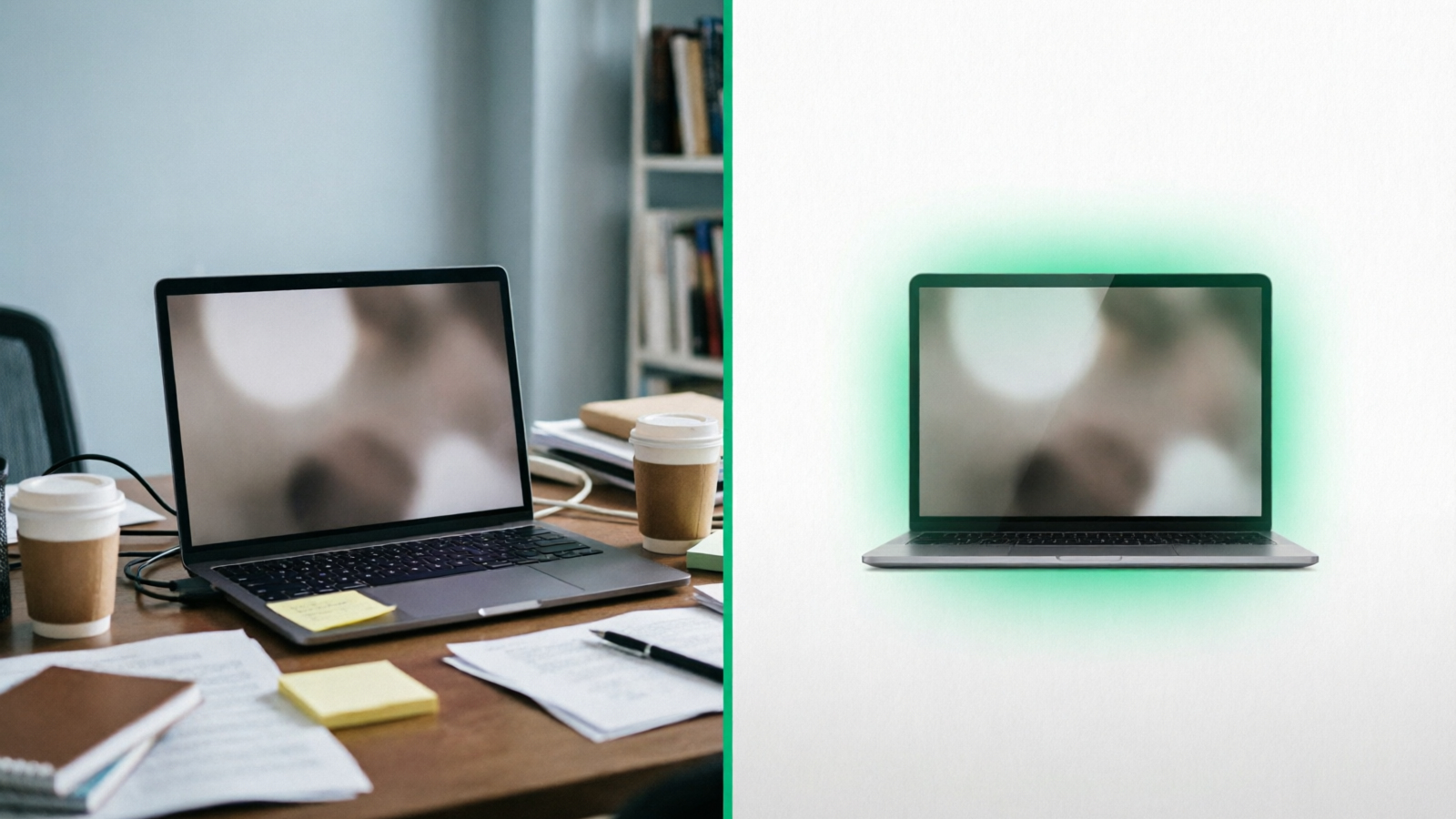
How to Remove Background from Image Online (Free, No Signup)
Removing a background from an image used to mean spending 10 minutes in Photoshop carefully tracing around your subject with the magic wand. Today, AI handles it in under 3 seconds — and you don’t need any design skills or software installed.
This guide covers everything you need to know about removing backgrounds online: what tools to use, how to get the best results, and how to prepare your images for platforms like Amazon, Shopify, and social media.
How to Remove a Background in 3 Steps
The fastest way to remove a background is with an online AI tool. Here’s the basic process:
Step 1: Upload your image Go to NoBG, click or drag your image onto the page. JPG, PNG, and WebP formats all work. No account required for your first few images.
Step 2: Wait for AI processing The AI detects your subject automatically — no manual selection needed. It identifies the foreground subject (person, product, animal, or object) and separates it from everything behind it. Processing takes 2–3 seconds for most images.
If the AI doesn’t produce a clean result on the first try, check the tips in the “What Makes a Good Result” section below — the issue is almost always related to the original image quality or contrast.
Step 3: Download your result Download the image as a transparent PNG. If you’re preparing product photos for selling online, you can also export directly in platform-specific formats.
Try it now — remove your first background for free →
That’s it. No software to install, no layers to manage, no learning curve.
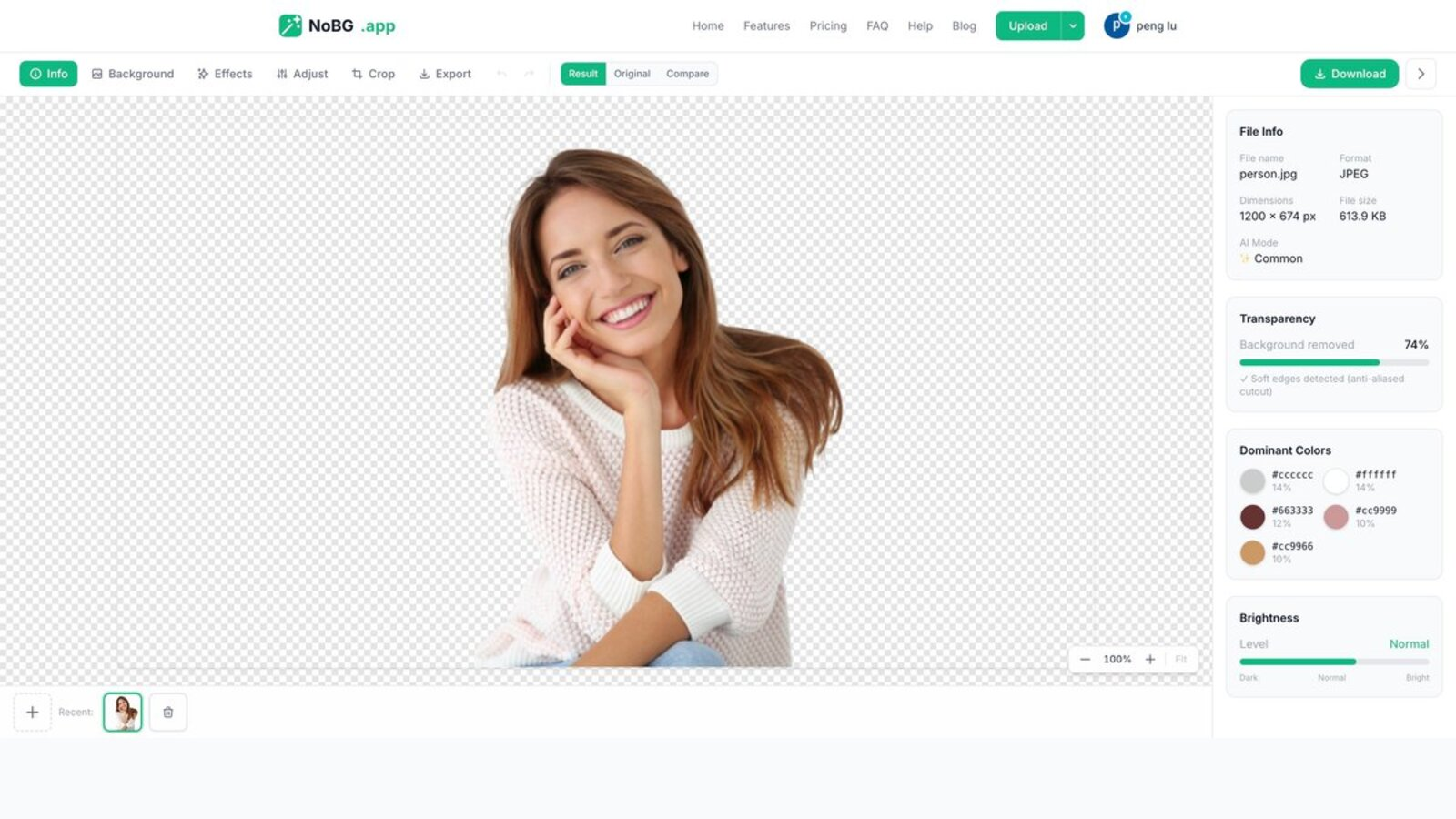
NoBG editor interface — Result tab with transparency percentage, dominant colors, file info, and Download button.
What Makes a Good Background Removal Result?
Not all background removals are equal. The quality depends on two things: your original image and the AI tool you choose.
Image quality tips
- High resolution matters. Start with the highest-quality image you have. Low-res photos (under 500px) produce jagged edges because there aren’t enough pixels for the AI to work with.
- Separate your subject from the background. The AI needs contrast between subject and background. A white product on a white background will confuse it. Good lighting and a contrasting backdrop give the cleanest results.
- Avoid cluttered backgrounds. Simple, solid-color backgrounds (grey, white, or light blue) work best. Busy patterns, textures, or other objects near your subject increase the chance of errors.
What to look for in a removal tool
- Edge accuracy — check hair strands, fur, and thin objects like jewelry or fingers. Poor tools leave a halo or cut off fine details.
- Speed — if you’re processing dozens of product photos, a tool that takes 10 seconds per image will waste significant time.
- Batch processing — e-commerce sellers rarely process one image at a time. The ability to upload 10–50 images at once is a major time-saver.
- Platform export — if you sell on Amazon, Shopify, or other marketplaces, a tool that exports in the correct format and dimensions for each platform eliminates manual resizing.
Common Use Cases
Product photos for e-commerce
The most common reason people remove backgrounds is for online selling. Amazon, Shopify, eBay, and most marketplaces require or strongly prefer product images on a clean white background.
The typical workflow looks like this:
- Photograph your product on any background (a desk, a sheet, a foam board — it doesn’t matter as long as the product is well-lit)
- Upload to a background remover
- Apply a white background
- Export in the platform’s required dimensions
For Amazon specifically, images must be at least 2000×2000 pixels with a pure white background in RGB color mode, saved as JPEG. Some tools, including NoBG, can automate the sizing and formatting so you don’t have to manually adjust each image.
Social media content
Transparent backgrounds are useful for creating profile pictures, story overlays, and marketing graphics. Remove the background from a product photo, then layer it onto a branded background or gradient in your design tool.
Logos and graphics
Logos often need transparent backgrounds for websites, business cards, and presentations. If you only have a logo on a white or colored background, a background remover can extract it cleanly — usually with better results than manually tracing in Photoshop, especially for complex text and shapes.
Portraits and headshots
Professional headshots sometimes need a clean or neutral background for LinkedIn, company websites, or acting portfolios. AI tools handle this well — clothing, skin tones, and most hair types are cleanly separated from the background.
For the best headshot results:
- Use a photo with even, diffused lighting (avoid harsh shadows)
- Wear clothing that contrasts with the original background
- Hair that’s pulled back or styled neatly produces cleaner edges than loose, windblown hair
- The AI may occasionally soften hair edges — for most professional headshots, this is acceptable and often looks better than a jagged exact cut
If you need pixel-perfect hair detail for large prints or high-end use, consider starting with a photo taken against a green or blue screen, which gives the AI the maximum contrast to work with.
📥 Free Download — First-Time Background Removal Quickstart
A 5-minute visual guide for first-time users — what to upload, what to expect, what to download, plus 8 common errors.
↓ Download PDF (how-to-remove-background-from-image-magnet.pdf)
How to Get Better Results on Difficult Images
Even with good AI, some images are challenging. Here’s how to handle common problems:
Problem: Fine hair detail gets lost
- Use an image where the hair is well-lit and clearly separated from the background
- Dark hair on a light background works better than the reverse
- Some tools offer a refine or brush tool — use it to paint back missing hair strands
Problem: Semi-transparent objects (glass, water, thin plastic)
- These are inherently difficult because there’s no clear boundary between the object and background
- Consider photographing the object against a contrasting solid color instead of transparent
- The AI will produce its best effort — you may need minor manual cleanup
Problem: Multiple subjects touching
- If two people are close together or an object is partially hidden behind another, the AI might merge them or cut one off
- Photograph subjects with space between them when possible
Problem: Very small subjects in a large image
- Crop the image to focus on the subject before uploading
- This gives the AI more pixel data to work with on the actual subject
Free vs Paid: When to Upgrade
Free background removal tools work well for occasional use — a few images per week. But if you’re regularly processing images, paid plans offer significant advantages:
- Higher daily limits — free tools typically cap you at 1–5 images per day
- Batch processing — upload 20 or 50 images at once instead of one by one
- Faster processing — paid users often get priority processing speed
- Platform export — automatic formatting for Amazon, Shopify, and other marketplaces
- API access — integrate background removal into your own applications or workflows
For reference, NoBG’s Pro plan costs $0.049 per image ($24.90 for 500 images) — one of the lowest rates available. If you’re processing more than 20 images per month, a paid plan usually pays for itself in time saved alone.
Frequently Asked Questions
How do I remove a background from an image for free?
Upload your image to an AI background removal tool like NoBG. The AI detects your subject and removes the background automatically. Download the result as a transparent PNG. No software installation or account is needed for basic use.
Can I remove a background on my phone?
Yes. Most online background removers work in mobile browsers. Upload your photo directly from your camera roll, and the AI processes it the same way as on a desktop. The result downloads as a PNG that you can use in any app.
What file format should I use for the output?
Use PNG if you need a transparent background (for logos, overlays, or design work). Use JPEG if you’re adding a solid background like white (for Amazon or Shopify product photos). JPEG produces smaller file sizes but doesn’t support transparency. If you’re unsure, PNG is the safer choice since it preserves the transparent background and can always be converted to JPEG later.
How do I make a white background for Amazon product photos?
Remove the background from your product photo using an AI tool, then apply a pure white background. Export at 2000×2000 pixels minimum, in RGB color mode, as a JPEG file. Some tools like NoBG offer one-click Amazon export that handles the dimensions and format automatically.
Is it safe to upload photos to online background removers?
Reputable tools process your images on secure servers and don’t store them permanently. Check the tool’s privacy policy before uploading sensitive images. For most product photos and general use, well-established tools are safe to use.
Remove your first background for free — no signup required →
Already using the tool? Here’s how to level up
If the NoBG editor is already your go-to background remover, the next step is moving past one-off image processing. Here are three things to try once you have the basics down:
- Switch to batch mode: Processing multiple images at once cuts your per-image overhead close to zero. The AI works the same on a single image or fifty at once.
- Set up your exports for one marketplace: Whether you sell on Amazon, Shopify, or eBay, the one-click platform export presets handle the resolution and format requirements without manual resizing.
- Try the API: If you process 500+ images a month, the API is cheaper than credits and lets you script the whole workflow into your existing pipeline.
Questions or feature requests? Drop us a line from the Help page — we read every message.