How to Remove Background From eBay Photos (Fast & Free)
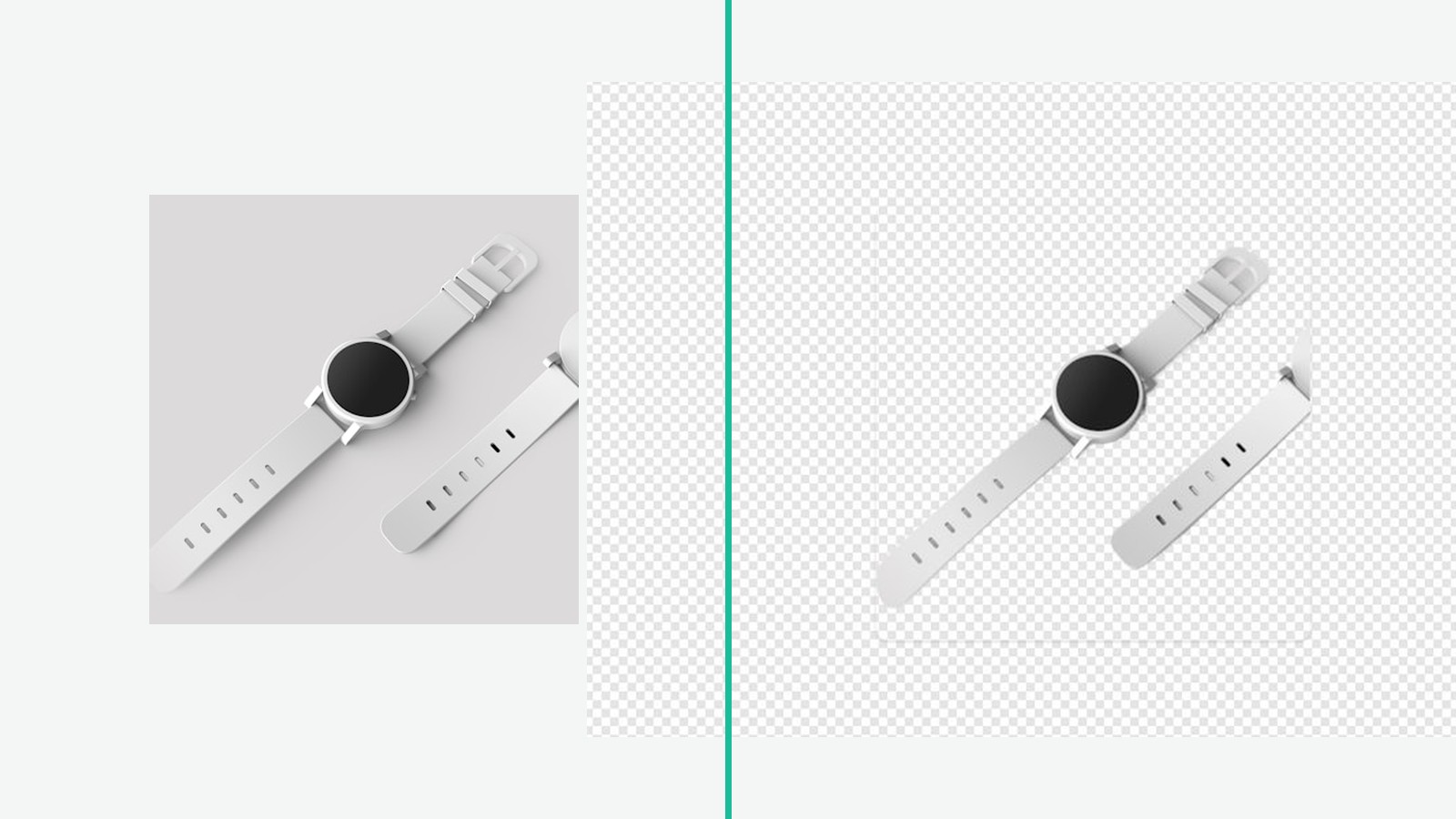
You shot your item on the kitchen table, uploaded it, and the listing is live. The problem? Your first photo is the thumbnail buyers see in eBay search results — and a cluttered background hides your product exactly where the buying decision starts. eBay’s own guidance is to keep backgrounds uncluttered and shoot against a white or neutral backdrop so the item stands out.
Removing the background from eBay photos takes seconds, not a photo studio. This page covers eBay’s actual photo rules, three ways to remove backgrounds from eBay photos — eBay’s built-in erase tool, a free AI remover like NoBG, and manual editing — plus the mistakes that quietly cost sellers clicks.
eBay Photo Requirements at a Glance
Before you edit anything, know what you’re editing toward. These rules come from eBay’s Seller Center photo guidance, and they’re shorter than most sellers expect.
Size, resolution, and format rules
| Rule | What eBay specifies |
|---|---|
| Minimum size | 500 × 500 pixels |
| Recommended size | 1600 × 1600 pixels |
| Photos per listing | Up to 24 |
| First photo | Appears in search results |
| Background | Uncluttered; white or neutral recommended |
The 500-pixel minimum is a hard floor — listings can fail review below it. The 1600 × 1600 recommendation exists because larger photos enable zoom on the listing page, and buyers who can zoom in on details tend to buy with more confidence. If your source photo is smaller than 1600 pixels, don’t upscale it; reshoot if you can.
What eBay doesn’t allow
eBay’s Seller Center is blunt about overlays: “Don’t add text, artwork, logos, or watermarks.” Borders and frames fall into the same bucket — decorations on top of the photo are discouraged because they compete with the product itself.
Note the difference from Amazon’s stricter pure-white rules. Amazon requires the main image on pure white (RGB 255, 255, 255) and will suppress listings that miss it. eBay asks for uncluttered, white/neutral backgrounds but treats it as guidance plus an algorithmic preference rather than a hard main-image rejection rule. That flexibility is why lifestyle shots still work in eBay secondary slots.
Why the first photo matters most
“Your first photo appears in search results” — that single line from eBay’s photo tips explains most of the payoff. In search, buyers scan a grid of thumbnails. A watch on a clean white square reads instantly; the same watch on a patterned tablecloth takes a beat to parse, and a beat is enough to lose the click. Every background edit you make pays off first in that thumbnail.
Why a Clean Background Sells More on eBay
How backgrounds affect clicks in search results
The product either pops or it doesn’t. A neutral backdrop separates the item from everything around it, which matters most in grid view where your photo sits beside competitors’. Sellers who process white background product photos for one marketplace usually roll the same treatment into every channel, because the visual logic is identical: clean thumbnail → easier scan → more clicks.
White vs. neutral vs. lifestyle backgrounds
- White — the safest choice for the first photo. Reads as “professional listing” and matches eBay’s recommendation.
- Neutral (grey, beige, soft tones) — works fine for the main image and gives categories like clothing or antiques a warmer feel.
- Lifestyle — save it for the secondary slots. With up to 24 photos per listing, you have room for the item in use, close-ups of details, and shots of flaws.
Category matters here: a vintage tool on a workbench tells a story; a phone case on a workbench just looks messy. Match the background to what buyers expect in your niche.
Method 1: eBay’s Built-In Background Erase Tool (Free, In-App)
eBay has been rolling out its own in-app photo tools, and they include background replacement. Per the Seller Center, “Our in-app photo tools give you multiple options to replace your photos’ backgrounds” — including AI-generated scene backgrounds you can drop your product into.
The access path: start or edit a listing, add a photo, then tap the photo to open the edit popup. The background eraser icon lives in that popup. Community threads walking through the flow confirm it works, though several note the interface takes a few taps to find and the results vary by photo.
The honest limits:
- It replaces backgrounds; it doesn’t remove them. You get a new backdrop, not a transparent PNG you can reuse elsewhere.
- One photo at a time, inside the listing flow. There’s no batch mode, so a 24-photo catalog means 24 separate sessions.
- Availability varies. The feature is still rolling out, so the exact options can differ by account and app version.
If you’re fixing one listing on your phone and the option is there, use it — free and built-in beats opening another tab. For anything recurring, it’s the slowest path.
Method 2: Remove Backgrounds With NoBG (Free, eBay-Ready Export)
This is the fastest way to remove backgrounds from eBay photos at volume — the workflow for sellers who list regularly. The NoBG editor runs in your browser, the AI does the cutting, and you stay in control of what eBay sees.
Step-by-step: phone or desktop
- Photograph the item on any contrasting surface. Even light, fill the frame with the product. You don’t need a white backdrop — you need contrast between product and background so the AI finds the edges cleanly. A grey towel under a white gadget beats a white sheet under a white gadget.
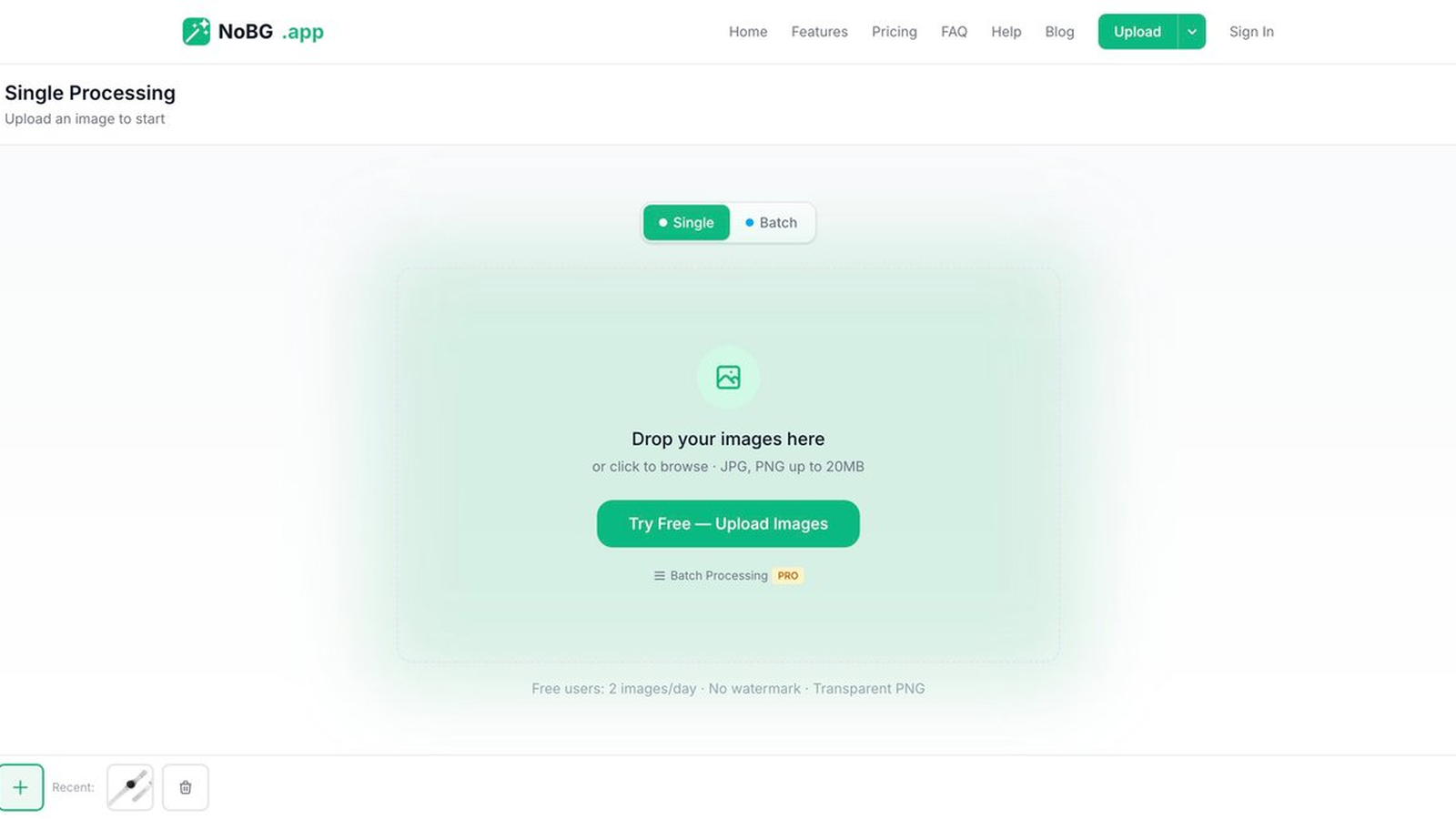
- Open the NoBG editor and drop the photo in. Drag and drop on desktop, or tap upload on your phone. JPG and PNG up to 20 MB each.
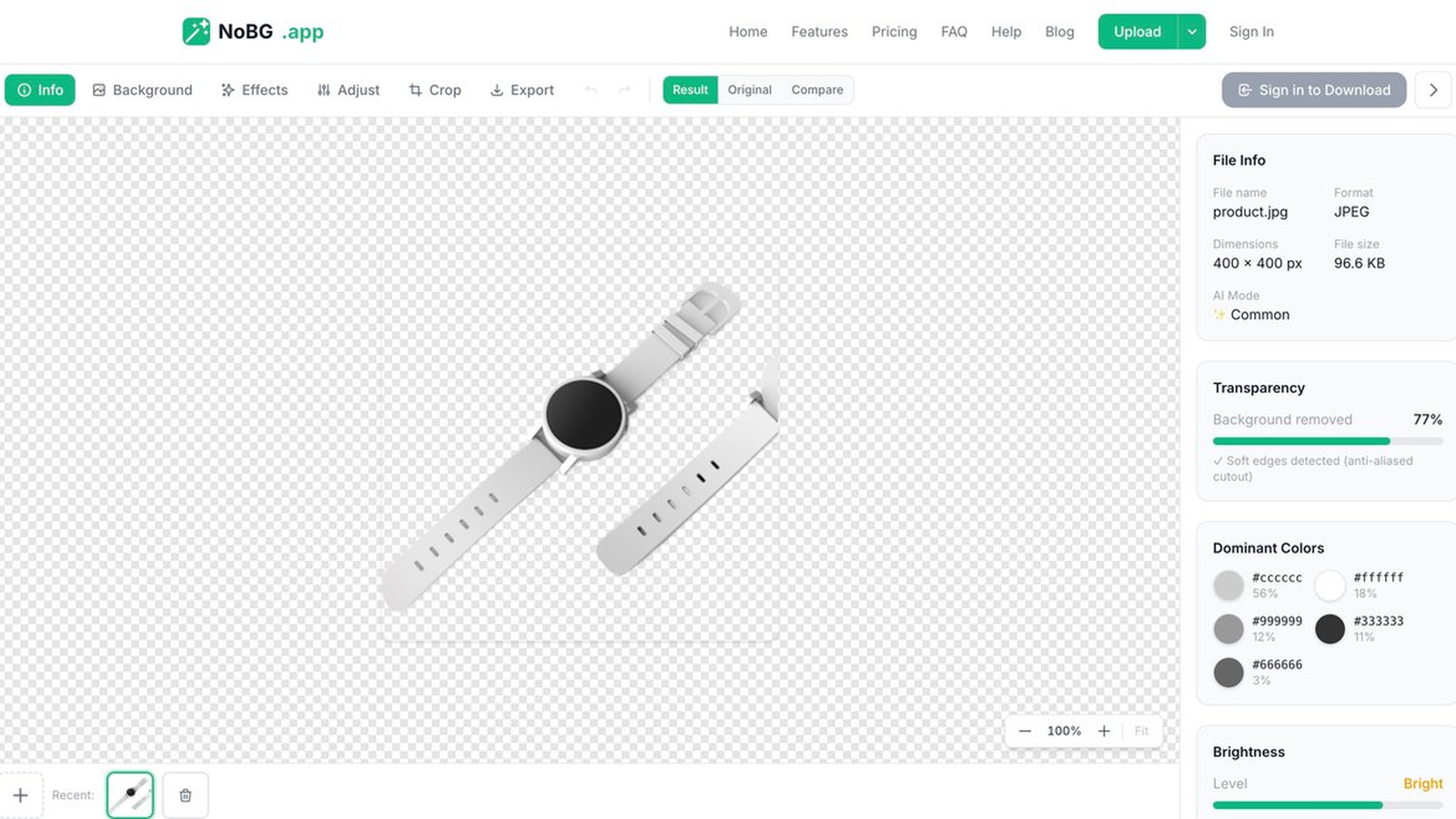
- Let the AI remove the background. Processing takes seconds. The result view shows the cutout over a transparency checkerboard so you can spot rough edges immediately.
- Apply a white or neutral background. One click in the Background panel — apply a white background for the main image, or pick a neutral tone if it suits your category.
- Download and upload to your eBay listing. The image lands in your gallery or downloads folder, ready for the listing flow.
The whole phone workflow is shoot → edit in the browser → upload from your gallery. No app install, no desktop handoff.
Hitting eBay’s size rules
The free tier is small but real: the editor works without an account, free signed-in use covers 2 removals per day, and free downloads cap at 800 pixels on the longest edge — which still clears eBay’s 500-pixel minimum with room to spare. No watermarks on the output.
The catch for serious sellers is the 1600-pixel zoom recommendation. Original-resolution downloads and the e-commerce one-click export (every marketplace size bundled into a single zip) are paid features, with plans from $9.90/month. If you’re listing a handful of items, free covers it. If you’re running a store, the resolution cap is the first wall you’ll hit.
Skip the paid tier if you only relist occasionally and your photos are already above 800 pixels — the free downloads meet eBay’s minimum either way.
Batch a whole catalog
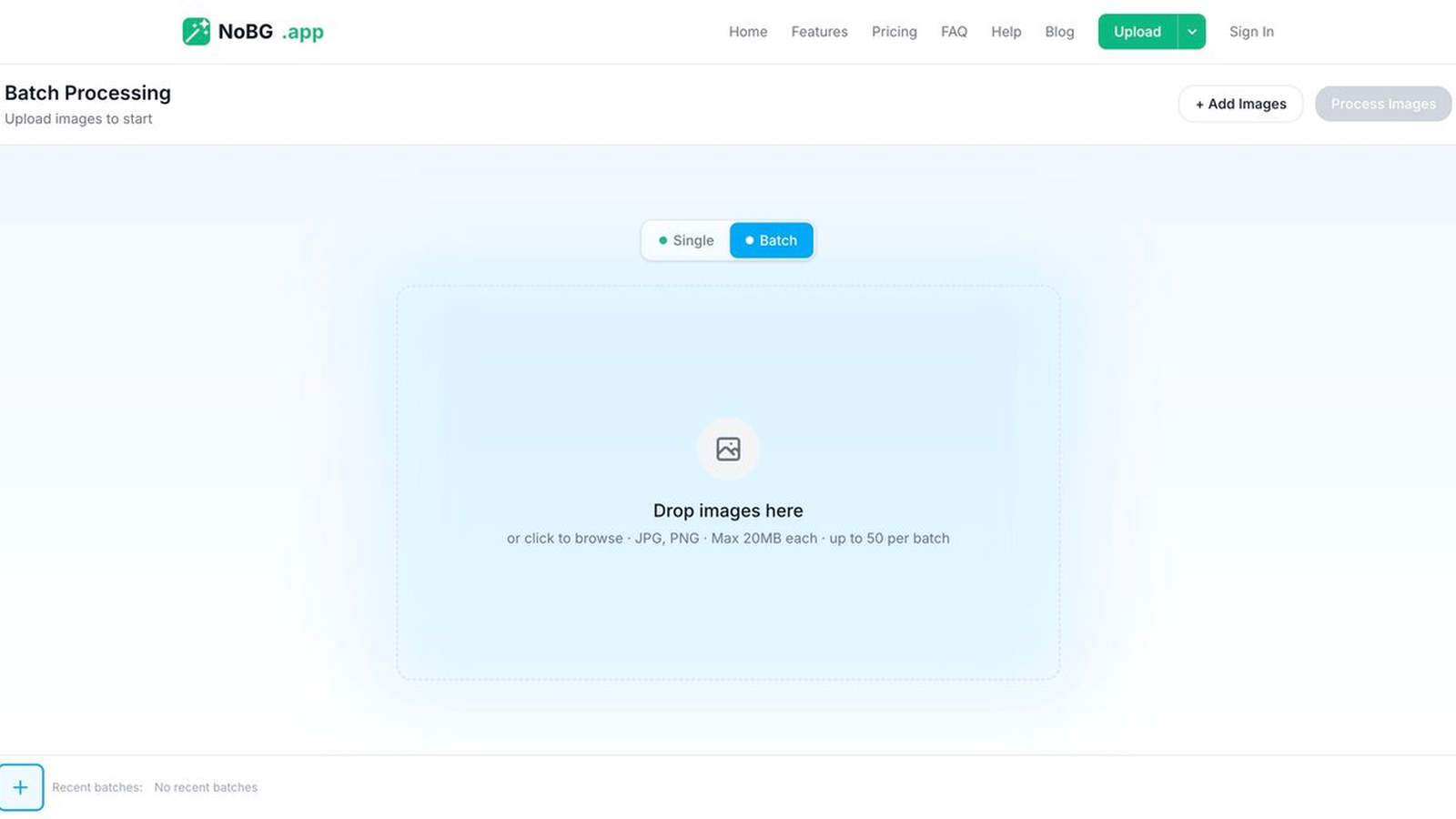
Listing multiple items? Batch mode processes up to 50 images per run, so you can prep all 24 listing slots consistently — same background, same margins, same professional look across your storefront. Sellers who move from one-at-a-time editing to batch rarely go back.
Method 3: Manual Editing in Photoshop or Mobile Apps
You can also remove the background from eBay photos by hand. Photoshop’s Select Subject gets you 90% of a cutout in two clicks, and refining the edge with a brush handles the last 10% — flyaway straps, fur, glass edges. Phone gallery editors and third-party apps offer similar one-tap cutouts with lighter controls.
When manual is worth it: a single high-value item where you want pixel-perfect edges, or a product with fine detail (jewelry chains, knit textures) that you’ll scrutinize at 100% zoom. The cost is time — minutes per image versus seconds, and every one of your 24 slots compounds it. Manual editing also demands a steady hand with refine tools; a rushed manual cutout looks worse than a clean AI one.
For most eBay inventory, manual is the method you graduate from, not to.
Which Method Should You Use?
| eBay built-in | NoBG | Manual editor | |
|---|---|---|---|
| Cost | Free | Free tier; paid from $9.90/mo | Software + your time |
| Speed | Per photo, in listing flow | Seconds per image | Minutes per image |
| Batch | No | Up to 50 per run | No |
| Transparent export | No (replaces only) | Yes | Yes |
| Max output size | In-app limits | Free: 800 px; paid: original | Your source file |
| Best for | One quick fix in the app | Sellers who list regularly | One-off high-value shots |
Quick read: occasional seller with one listing → try eBay’s built-in tool first. Regular seller or store owner → NoBG’s free tier today, paid when resolution matters. Photographer with a flagship item → manual for that hero shot.
Common Mistakes That Get eBay Photos Ignored
Cluttered or off-white backgrounds
The kitchen-table shot with mail in the corner. eBay’s guidance to keep backgrounds uncluttered isn’t aesthetic preference — in a thumbnail grid, every object competing with your product costs scan-ability, and off-white casts make items look yellowed or dingy next to clean competitors.
Photos too small for zoom
Under 500 pixels violates the minimum outright. Between 500 and 1600, your listing loads but zoom underdelivers — buyers pinching to see detail and finding blur tend to bounce. Check your export settings before upload: many editors downscale by default, and a 4000-pixel original can still leave the listing as an 800-pixel file.
Watermarks, borders, and text overlays
eBay names these directly: don’t add text, artwork, logos, or watermarks. Some sellers add borders to look polished or a store name to deter theft — both read as noise in the thumbnail and both run against stated guidance. Protect your photos with eBay’s own reporting tools instead of overlaying text.
Pro Tips for Listing Photos That Convert
- Shoot for contrast, not for white. Photographing a white product on white makes both the AI’s job and your eye’s job harder. Shoot on grey, blue, or any contrasting tone, then remove backgrounds from product photos and swap in white at export.
- Keep every slot consistent. Same background, same framing, same margins across all 24 photos. The listing reads as a professional storefront instead of a photo dump.
- Fill the frame. The product should dominate the shot. Buyers zoom in for detail; make them zoom to inspect, not to find the item.
- Photograph flaws honestly. A close-up of the scratch costs you nothing — returns cost you shipping both ways plus the rating.
Frequently Asked Questions
Does eBay require a white background for photos?
Not the way Amazon does. eBay asks sellers to keep backgrounds “uncluttered” and shoot against a “white/neutral background” so items stand out — a recommendation with algorithmic teeth (your first photo is the search-results thumbnail), not a hard main-image mandate like Amazon’s pure-white RGB rule.
What size do eBay photos need to be?
The minimum is 500 × 500 pixels; eBay recommends 1600 × 1600 so buyers can zoom in on details. You can add up to 24 photos to each listing.
Can I remove the background directly in eBay?
Yes. eBay’s in-app photo tools now include background replacement options, including AI-generated scene backgrounds — you’ll find the background eraser inside the listing photo editor. It’s free and built in, but it works one photo at a time inside the listing flow, with no batch mode or transparent export. The feature is still rolling out, so the exact options can vary by account and app version.
Can I use NoBG for eBay photos for free?
Yes — the editor works without an account. Free signed-in use covers 2 removals per day with downloads capped at 800 pixels on the longest edge, which still clears eBay’s 500-pixel minimum. Original-resolution downloads (matched to eBay’s 1600-pixel zoom recommendation) and the e-commerce one-click export are paid features, with plans from $9.90/month.
Should I use a transparent background on eBay listing photos?
Generally, no. eBay listing photos render in the search grid and listing page as full-frame images, so a transparent PNG can display with an unexpected fill depending on where it’s viewed. For the main image, a solid white or neutral background is the safer choice; save transparent backgrounds for graphics where you control the backdrop.
How many photos should an eBay listing have?
eBay allows up to 24 photos per listing, and more photos generally reduce returns because buyers see exactly what they’re getting. Aim for a clean main image on white/neutral plus multiple angles, close-ups of details and flaws, and a few lifestyle shots in the secondary slots.
Remove backgrounds from eBay photos in seconds — try the NoBG editor free →
Related guides
- White background for Amazon product photos — the stricter RGB 255 rule next door
- White background product photos across marketplaces — Amazon, eBay, Etsy, Shopify compared
- Remove background from product photos — three methods for any product shot
- Compress images online for free — shrink files before uploading
More image editing guides are on the NoBG blog.
Already using the tool? Here’s how to level up
If the NoBG editor is already your go-to background remover, the next step is moving past one-off image processing. A few things to try once you have the basics down:
- Switch to batch mode: Processing multiple images at once with batch background removal cuts your per-image overhead close to zero — prep all 24 eBay slots in one run.
- Set up your exports for one marketplace: The one-click platform export presets handle resolution and format requirements for Amazon, Shopify, and eBay without manual resizing.
- Pick the right plan: If you’re hitting the free tier’s daily limits, pricing starts at $9.90/month for original-resolution downloads and batch.
Questions or feature requests? Drop us a line from the Help page — we read every message.
Need help with NoBG?
Our Help Center covers the common questions. If you're trying it for the first time, start with the quick-start guide.