How to Remove Background from Pet Photos (Free, 3 Steps)
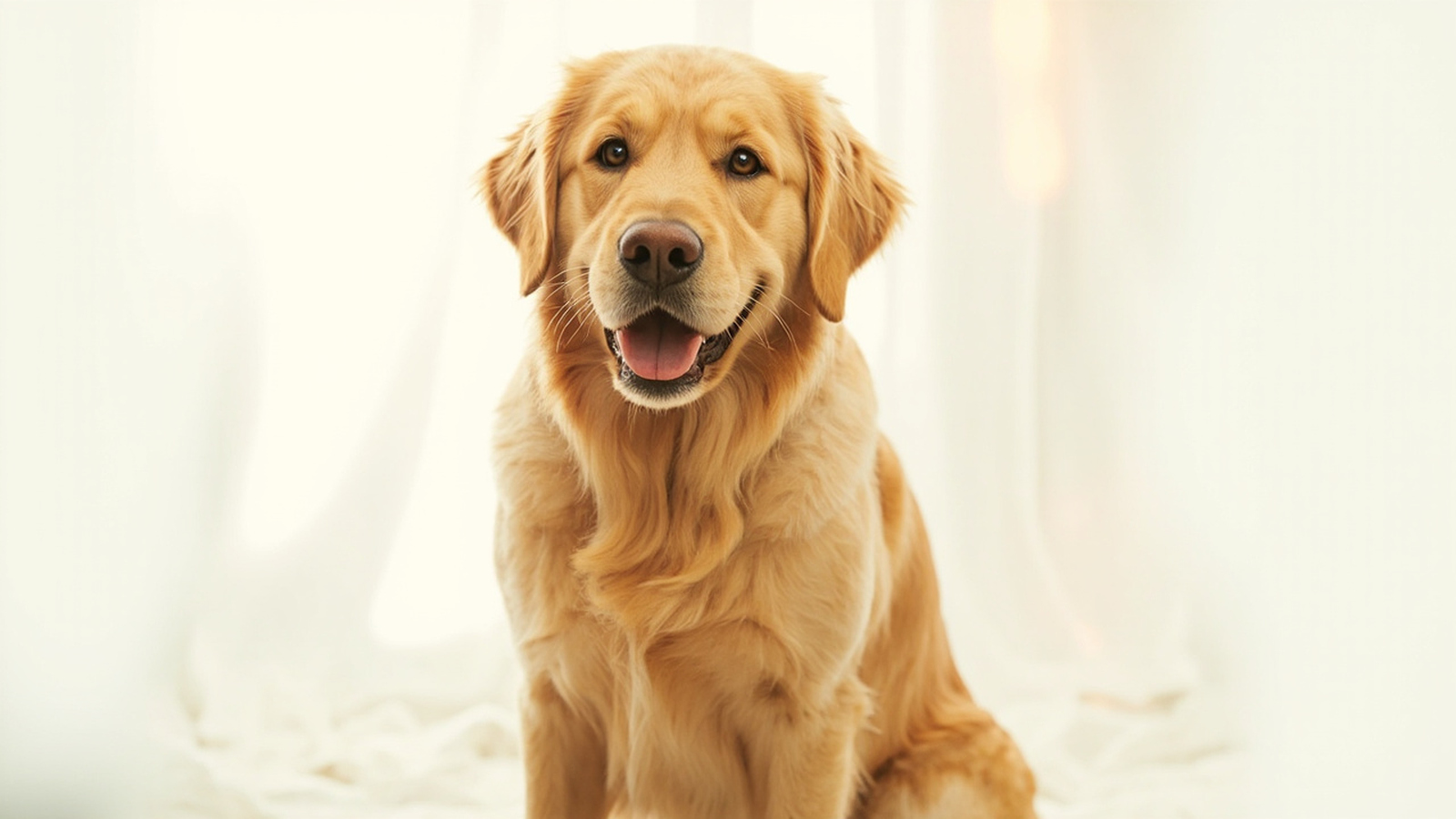
Most generic background remover guides skip the messy part: pets aren’t products. Dogs have fluffy fur edges, cats have sub-pixel whiskers, and two rabbits in one frame look like one shape to most AI. If you’ve tried uploading a pet photo to a free tool and gotten back a halo-edged blob with clipped ears, the tool wasn’t built for animals — it was trained on clean product and portrait edges. This guide walks through how to remove background from photos specifically for pets, including which tools handle fur and whiskers well, which mobile workflow works on iPhone and Android, and what output format to pick for adoption listings, merch, and social media.
Remove the background from your pet photo in 3 seconds →
Why Pet Photos Are Different (And Harder Than You Think)
Pet edge detection is a different problem than product cutouts. A coffee mug on a white table has a hard edge — clear color contrast between the object and the background, and the AI just follows the line. A golden retriever’s tail against a beige couch doesn’t have that line. Fur strands fade into the background gradually, and depending on the photo, the AI either clips them (you lose the fluffy look) or keeps a faint halo of background color around the pet (it looks fake).
The fur problem
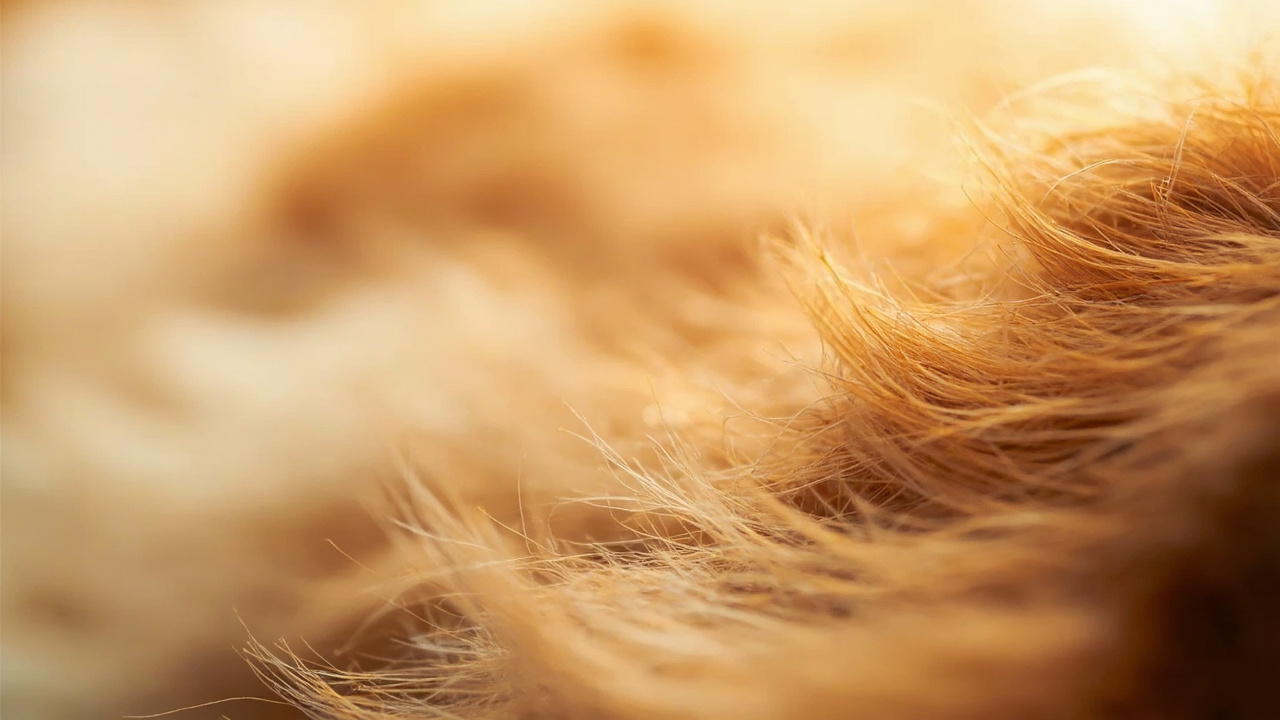
AI models trained on clean product and portrait edges struggle with fine fur — they either cut fur tips off and lose the natural fluffy look, or they keep a background halo around the pet that screams “edited.” NoBG’s edge model has been trained on animal edge datasets since the 2024 launch specifically to handle this. The detection passes over fur edges in multiple refinement steps rather than picking a single cutoff line.
Whiskers and ears
Whiskers on cats and the translucent ear edges on rabbits are sub-pixel detection targets — many free tools just paint over them. NoBG’s edge refinement runs a second pass on thin features specifically, so whiskers stay visible on straight portrait shots. Results vary by image: a busy background or motion blur will degrade detection, but on a clean portrait you get the whiskers back.
Group shots and movement blur
Two pets in one frame trip up tools trained on single-subject detection. The AI may merge both animals into one shape or split a single pet in half if the pose is awkward. Motion blur is worse — the edges aren’t defined enough for any AI to lock onto cleanly. The simple fix is to reshoot, but if you can’t, batch tools designed for product photos won’t help. Tools built for animals handle multi-subject frames better.
Quick 3-Step Method (The Fastest Way)
For most pet photos — single dog or cat, decent lighting, plain-ish background — this works in under a minute.
Step 1 — Upload your photo
Open NoBG in any browser (desktop, iPhone, Android). Drag-drop or click upload. Supported formats: JPG, PNG, HEIC, WebP, up to 4K resolution on the free tier.
Step 2 — Wait 3 seconds
The AI detects your pet (or pets), separates the subject from the background, and refines the fur and whisker edges. No manual selection required for most pet photos.
Step 3 — Download the result
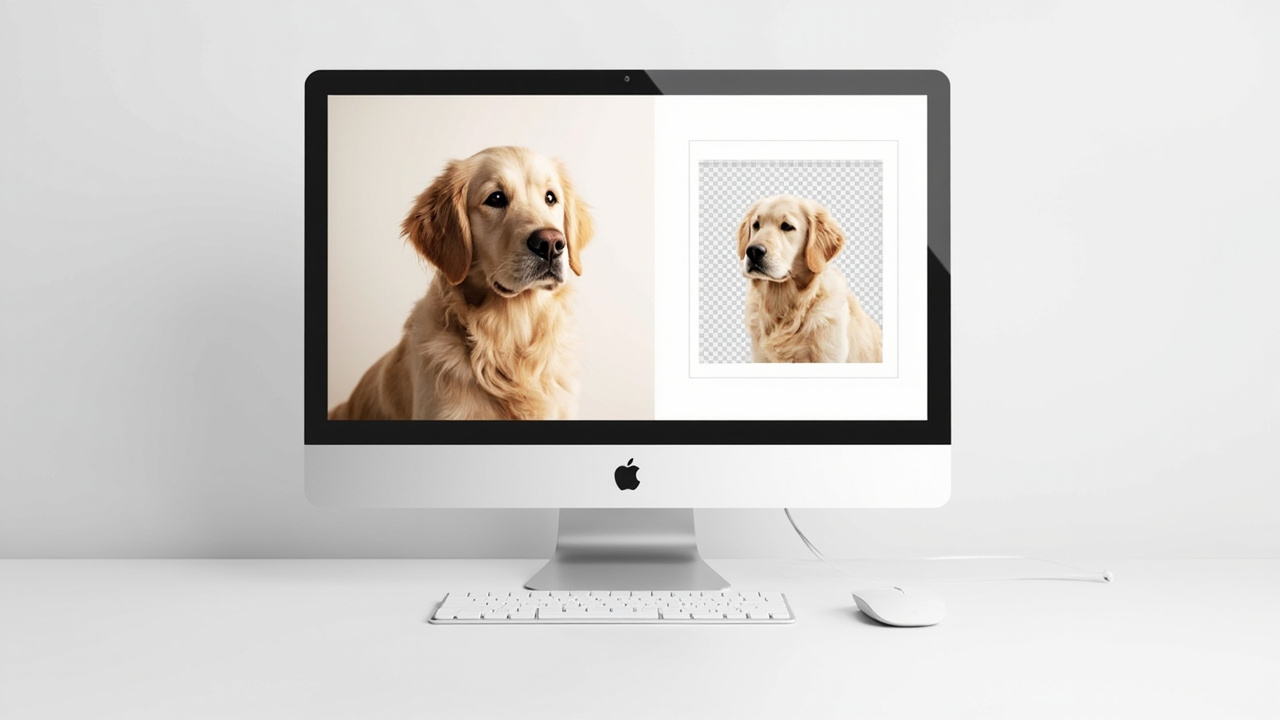
Choose PNG for transparent output if you’re layering onto a custom background later — memes, merch designs, social media overlays. Or pick a background color directly (white works well for adoption listings). Full resolution preserved — no downscaling on the free tier.
Remove the background from your pet photo →
Dog Photos: Specific Tips and Use Cases
Dogs test background removers harder than most subjects because of fur volume and color variety. A short-haired beagle on a couch is easy. A long-haired sheepdog in a yard is not.
Best output for dog portraits
Adoption listings look professional with a transparent PNG and text overlay (“Adopt me!” plus the shelter logo). Pet social media works well with a transparent cutout composited onto a fun background — beach, park, holiday scene. Custom merch (t-shirts, mugs, phone cases via Printful or Printify) needs a transparent PNG that drops straight onto the product mockup.
Common dog edge challenges
Long-haired breeds — golden retrievers, sheepdogs, Bernese mountain dogs — have more fur surface area for the AI to handle. Shoot against a high-contrast background whenever possible. Dark dogs on dark backgrounds (a black lab on a dark couch) are the worst case for any AI tool. If you can’t reshoot, expect some edge cleanup. Multiple dogs in one frame sometimes get merged or split incorrectly — always verify the result before downloading.
Recommended workflow for shelters and rescues
For volunteer-run shelters processing intake photos, NoBG’s batch tool handles up to 50 photos at once. Upload a folder, the AI processes everything in parallel, and you download a ZIP of transparent PNGs at 1024×1024 minimum resolution. Free, no per-image fees — important when shelter budgets are tight. A typical 20-photo listing takes under 5 minutes end-to-end.
Cat Photos: Fur Edges and Whisker Handling
Cats expose the weakness of most free background removers because whiskers are sub-pixel features — even good AI misses them sometimes.
Why cats test AI tools
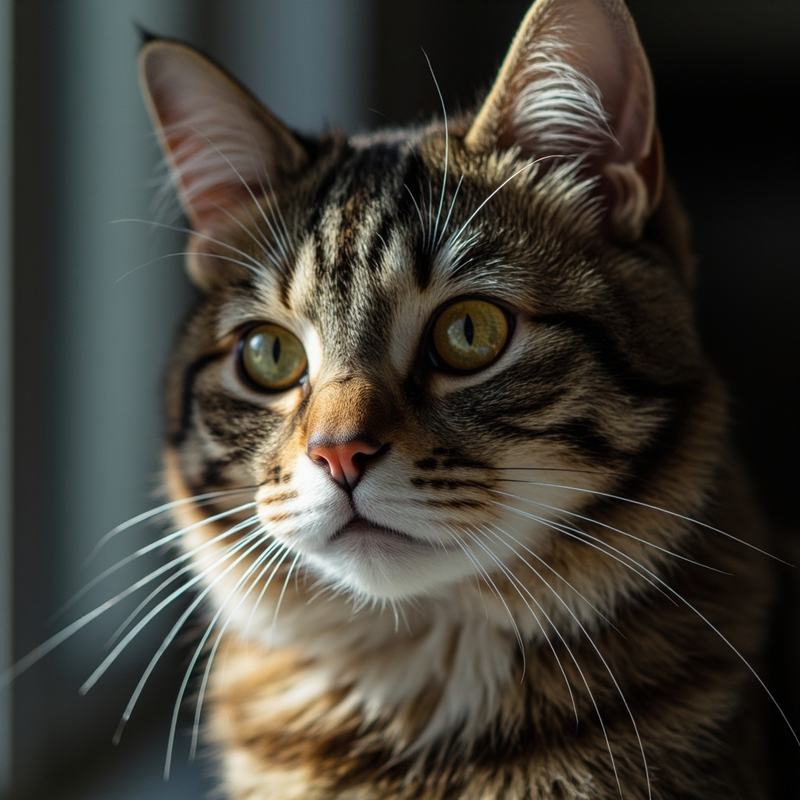
Whiskers are thinner than most detection models are tuned for. NoBG’s edge refinement is designed to preserve whiskers on straight portrait shots, though results vary by image. Long-haired cats (Persian, Maine Coon, Ragdoll) need the same high-contrast backdrop trick as long-haired dogs — busy backgrounds break detection on fur edges.
Cat photo use cases
Social media memes — transparent cat plus caption text — is a classic format that drops straight into Canva, Photoshop, or iPhone Markup. Custom holiday cards work well with a transparent cat photo composited onto a festive background. Pet memorial portraits get dignity from a clean cutout on a soft background, often with the pet’s name and dates in subtle text.
Quick fix for whiskers cut off
If whiskers got clipped in the first pass, paint them back in Photoshop or GIMP — five minutes with a small brush. The alternative is to reshoot against a plain wall. Busy backgrounds tend to be where whisker detection fails most often, and a clean wall gives the AI a clear separation line.
Other Animals — Rabbits, Birds, Reptiles
Pet background removal covers more than cats and dogs. Small mammals, birds, and reptiles each have their own edge challenges.
Small mammals (rabbits, hamsters, guinea pigs)
Soft fur edges are detectable — NoBG handles them well in standard tests. The use case here is mostly pet product photography for small-mammal toys or bedding, where a transparent cutout composites onto a lifestyle background.
Birds (parrots, chickens, wild birds)
Feather edges are the next hardest challenge after fur. Single-color feathers (parrot, canary, cockatiel) detect better than patterned ones (pheasant, peacock, some wild birds). Common use cases are wildlife photography cleanups and backyard bird ID guides where the bird needs to be clearly separated from foliage or sky.
Reptiles and exotic pets
Snakes on neutral backgrounds are easy. Lizards with patterned scales are medium difficulty. The main use case here is reptile breeders listing morphs for sale — product-style shots with transparent backgrounds work well on breeder marketplaces.
Pet Portrait and Memorial Use Cases
Niche but high-intent — these uses tend to come up when a pet has passed or when someone wants a professional portrait.
Formal pet portraits
Commissioned or studio-style pet photos read as “professional” when the background is clean. If your source photo has a busy home or yard background, removing it and layering onto a solid color, gradient, or scenic backdrop gives you the studio look without booking studio time.
Memorial and tribute photos
Rainbow Bridge memorials use a transparent cutout plus a soft background plus name and date text. Charitable tributes for pet medical care use a clean portrait plus a donation CTA overlay. Both formats rely on a high-quality cutout that preserves the pet’s features without edge artifacts.
Custom pet merch
Phone cases, mugs, prints, t-shirts — all of these work with a transparent pet onto a product mockup via Printful or Printify. The NoBG transparent PNG output drops straight into those services without further editing.
Mobile Workflow (iPhone and Android)
Most pet photos get taken on phones now. Here’s how to handle the workflow on each.
iPhone workflow
Three steps. Take the photo in good light — natural light is best, avoid harsh flash which creates edge detection issues. Then open NoBG in Safari, tap the upload area, and select the photo from your camera roll. Wait about 3 seconds for the AI to process and tap download. The result saves back to your camera roll as a PNG (transparent) or JPG (with a background color you picked). For more on iPhone-specific workflow, see our guide to removing backgrounds from photos on iPhone. iOS 17+ has built-in subject lift — usable for simple backgrounds but struggles on fur edges where dedicated tools perform better.
Android workflow
Same three steps as iPhone. Chrome works best on Android. Android 12+ has built-in subject erase — useful for quick edits but weaker on fur. For phone photos specifically, the same rules apply: shoot in good light, use a plain background when possible, and verify the cutout at full resolution before sharing.
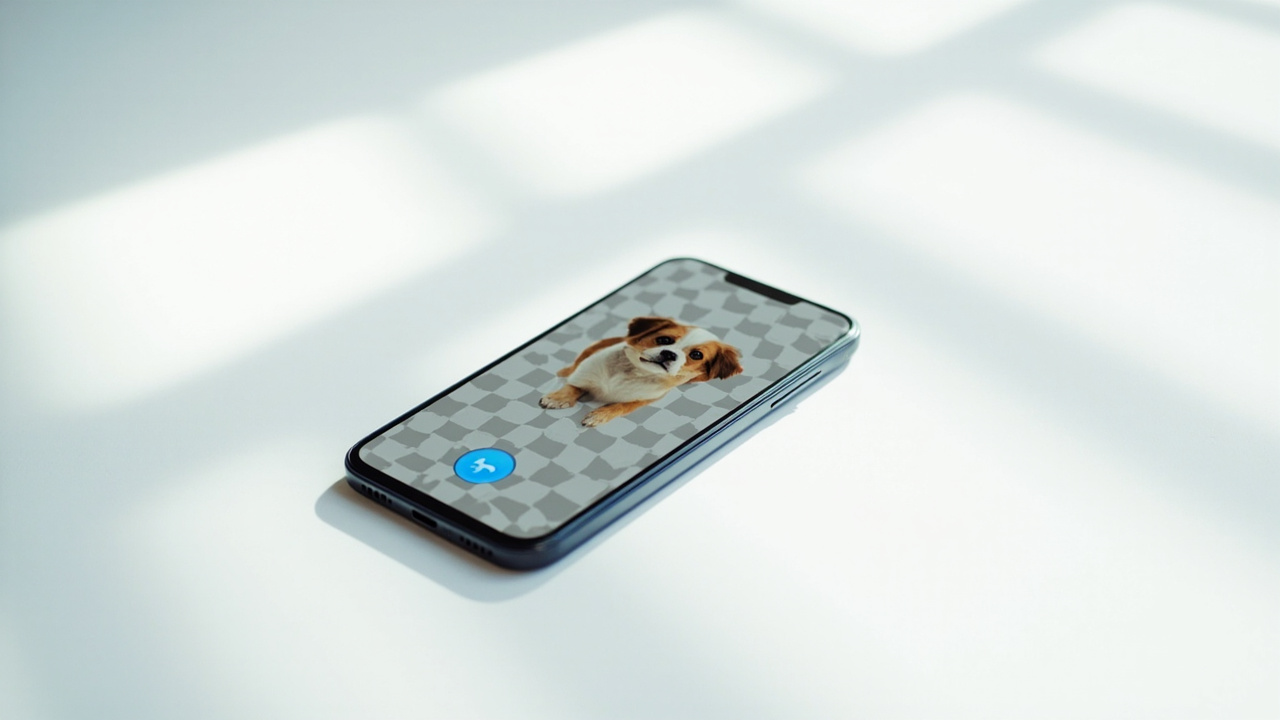
Output Formats — Transparent PNG vs JPG With Color
The format choice depends entirely on where the image is going.
When to use PNG (transparent)
PNG is the right pick for layering onto custom backgrounds in Canva, Photoshop, or Figma — memes, social posts, merch designs. PNG preserves the alpha channel (the transparency data) and keeps every fur and whisker edge intact. For more on transparency, see our transparent background guide or the transparent PNG output guide.
When to use JPG (with background color)
JPG works for adoption listing profile photos where white background looks professional, and for print-ready photos where transparency isn’t supported. Pick a solid background color before downloading — white for listings, custom color for branding.
File size tradeoff
PNG files are larger than JPG — usually 5-10x — which is the cost of preserving the alpha channel. Compress with TinyPNG for web use if file size matters. For most social media and merch use, the larger file size isn’t an issue.
Best Pet Background Removers
There isn’t yet a public pet-specific edge quality test across major tools, so this section ranks by free tier behavior rather than scoring on a benchmark we haven’t run.
Free tier comparison
| Tool | Free Tier | Best For | Limitation |
|---|---|---|---|
| NoBG | Unlimited, no signup | Pet owners + shelters | Advanced editing needs paid plan |
| Tool A | Low-res free, paid HD | High-quality portraits | Resolution-limited free tier |
| Tool B | Generous, requires account | Casual social media | Account required to download |
| Tool C | Mobile-first, watermarked | E-commerce pet products | Watermarked free output |
| Tool D | Bundled with design tools | Simple backgrounds only | Struggles with fur edges |
For broader tool comparisons on product, portrait, and logo photos (7 free tools tested), see our best free background removers comparison. Free tier terms change frequently — verify current limits on each tool’s site before relying on them.
Common Mistakes When Removing Pet Photo Backgrounds
A few patterns come up repeatedly when processing pet photos. Fix these before reshooting.
Busy background shooting
Photographed your dog in a cluttered yard expecting AI to figure it out. The fix: reshoot against a plain wall, or accept some edge imperfections and clean them up in Photoshop or GIMP. Plain backgrounds always produce cleaner cutouts.
Low-resolution source image
Uploaded a 400×300 thumbnail and got 400×300 output. AI can’t add detail that wasn’t captured. Always upload the highest-resolution original your camera or phone produced. The free tier preserves the original resolution through processing.
Wrong output format
Saved as JPG when transparent PNG was needed (or the reverse). JPG drops the alpha channel and replaces it with white. If you save as JPG and need transparency later, you’ll have to re-process from the original. Pick the output format before downloading — default to PNG unless you have a specific reason to use JPG.
Frequently Asked Questions
What is the best free background remover for pet photos?
For free, unlimited pet photo background removal with no signup, NoBG is a solid pick. The free tier delivers full-resolution transparent PNG output with no watermarks and no account required. For broader tool comparisons (7 free tools tested on product, portrait, and logo photos), see our best free background removers guide. Note that we haven’t published a pet-specific tool comparison yet — most other tools either require account creation to view results or cap free downloads at lower resolution.
How do I remove the background from a dog photo on my iPhone?
Three steps. First, take or open your dog photo in good natural light — avoid harsh flash which creates edge detection issues. Second, open NoBG in Safari, tap the upload area, and pick the photo from your camera roll. Third, wait about 3 seconds for the AI to process and tap download. The result saves back to your camera roll as a PNG with transparent background. iOS includes built-in subject lift tools for simple backgrounds, but they can struggle with fur edges where dedicated tools perform better.
Will the background remover cut off my pet’s whiskers or fur edges?
Most free tools lose whisker and fine fur detail to varying degrees. NoBG’s edge refinement is designed to preserve whiskers on straight portrait shots, and to keep fluffy fur edges without halo bleeding — though results vary by photo. If you have a particularly tricky shot (busy background, motion blur), the result may clip some detail — you can paint whiskers back manually in Photoshop or GIMP, or reshoot against a plain wall for better detection.
Can I batch process pet photos for my shelter or rescue?
Yes. NoBG’s batch background removal tool processes up to 50 pet photos at once. Free, no per-image fees — important for volunteer-run shelters. Upload a folder, the AI processes everything in parallel, and you download a ZIP of transparent PNGs. Typical 20-photo shelter listing takes under 5 minutes total. For larger batches or repeat use, see the batch processing help page for tips on folder preparation and output formats.
Should I save the result as PNG or JPG?
Use PNG if you need a transparent background — for layering onto custom backgrounds in Canva, Photoshop, or merch mockups. PNG preserves the alpha channel (the transparency). Use JPG if you’re adding a solid background like white (for adoption listings or print) — JPG files are 5-10x smaller. The catch: JPG doesn’t support transparency, so if you save as JPG and need transparency later, you’ll have to re-process.
Is uploading my pet photo to a background remover safe?
Per NoBG’s privacy policy and image data handling page: uploaded originals are read in, processed, and dropped — they’re not stored permanently. Processed results live in temporary Cloudflare R2 storage and are automatically deleted within 72 hours. NoBG does not use your images to train AI models. All traffic runs over HTTPS. For most pet owner use cases — adoption listings, social media, personal merch — these are safe defaults.
What background color works best for pet adoption listings?
Plain white is the widely used default for adoption listings — it reads as clean and professional, and lets the pet’s features (eye color, fur markings) stand out. Most major adoption platforms prefer white or very light backgrounds for primary photos. NoBG outputs transparent PNG by default; to add white, either pick the white background option in the result panel, or layer the transparent result onto a white background in Canva or Photoshop.
Ready to process a full set of pet photos? Open the NoBG editor → or check our pricing for high-volume plans if you’re processing shelter or breeder inventory.
Need help with NoBG?
Our Help Center covers the common questions. If you're trying it for the first time, start with the quick-start guide.